To use PeekViewer: open peekviewer.gwaa.net in any browser, type the public username (no @, no password), and the profile loads with stories, posts, reels and highlights all accessible. Tap any item to view; tap the Download HD button to save it as an original MP4 (video) or JPG (photo). Free trial lets you verify it works; paid subscription unlocks unlimited use and downloads.
⚡ Key takeaways
- Three taps total: open site → type username → view/download.
- No account, no app install, no extension required.
- Works identically on phone, tablet and laptop.
- Free trial first, paid subscription for daily use.
- Public profiles only — private is locked at Instagram’s server.
This guide walks you through every step of using PeekViewer — from opening the site for the first time to saving HD downloads to your gallery. We’ll cover the three core taps, the four content types you can browse, the download options, keyboard shortcuts for power users, the bulk-save flow, and the small troubleshooting catalogue for when something doesn’t go as expected.
Step 1: Type the public username
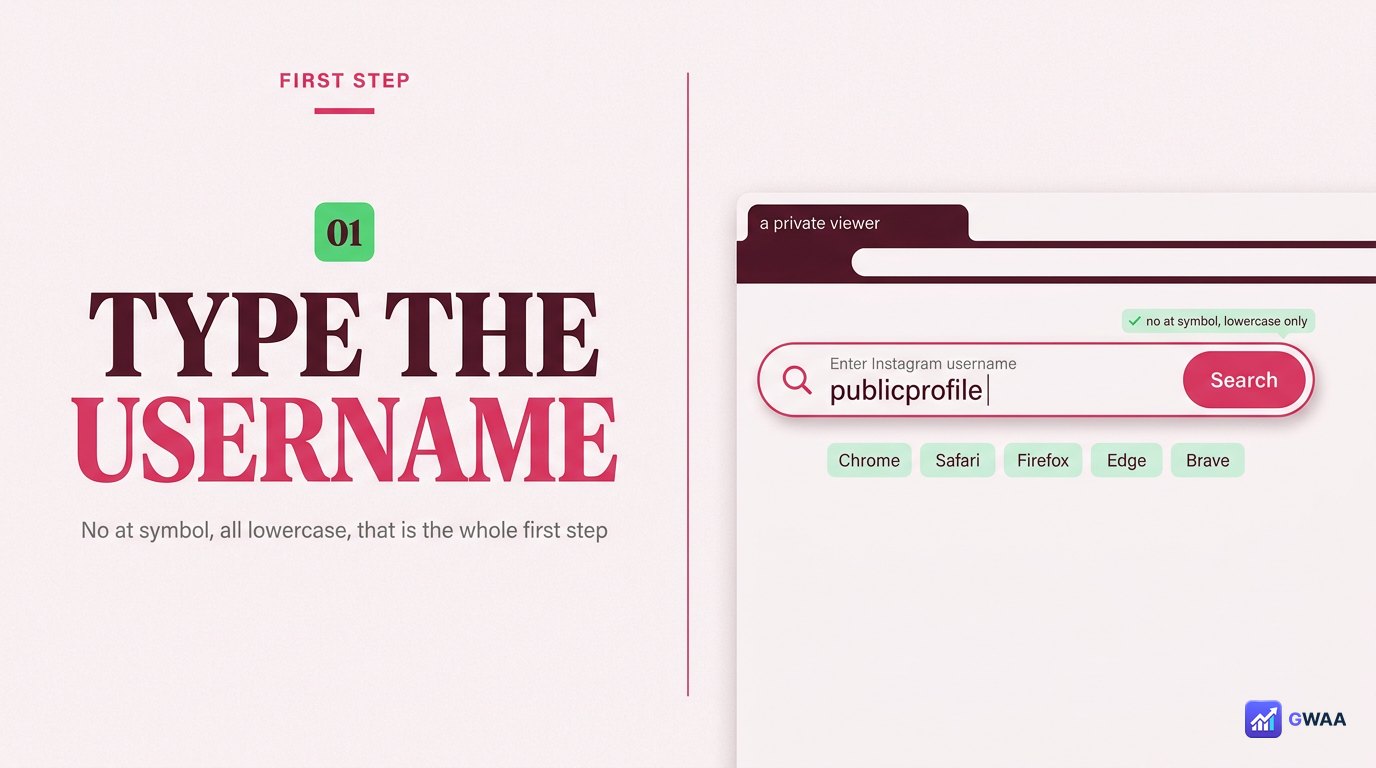
Open peekviewer.gwaa.net in any modern browser (Chrome, Safari, Firefox, Edge, Brave — anything from the last few years works). You’ll land on a clean home page with a single big search field labelled Enter Instagram username.
Type the public username of the profile you want to view. Three small rules that save time:
- No @ symbol. Just the handle. The @ confuses some search resolvers.
- All lowercase. Instagram normalises internally, but lowercase is universally safe.
- Exact dots and underscores. travel.diaries and travel_diaries are different accounts. Copy from the Instagram URL bar if you’re unsure.
Press the View profile button or hit Enter. PeekViewer’s servers fetch the public profile content; the loading takes a second or two. Your Instagram account is not involved — PeekViewer queries Instagram’s public endpoints, not your authenticated session.
Step 2: Browse what is public
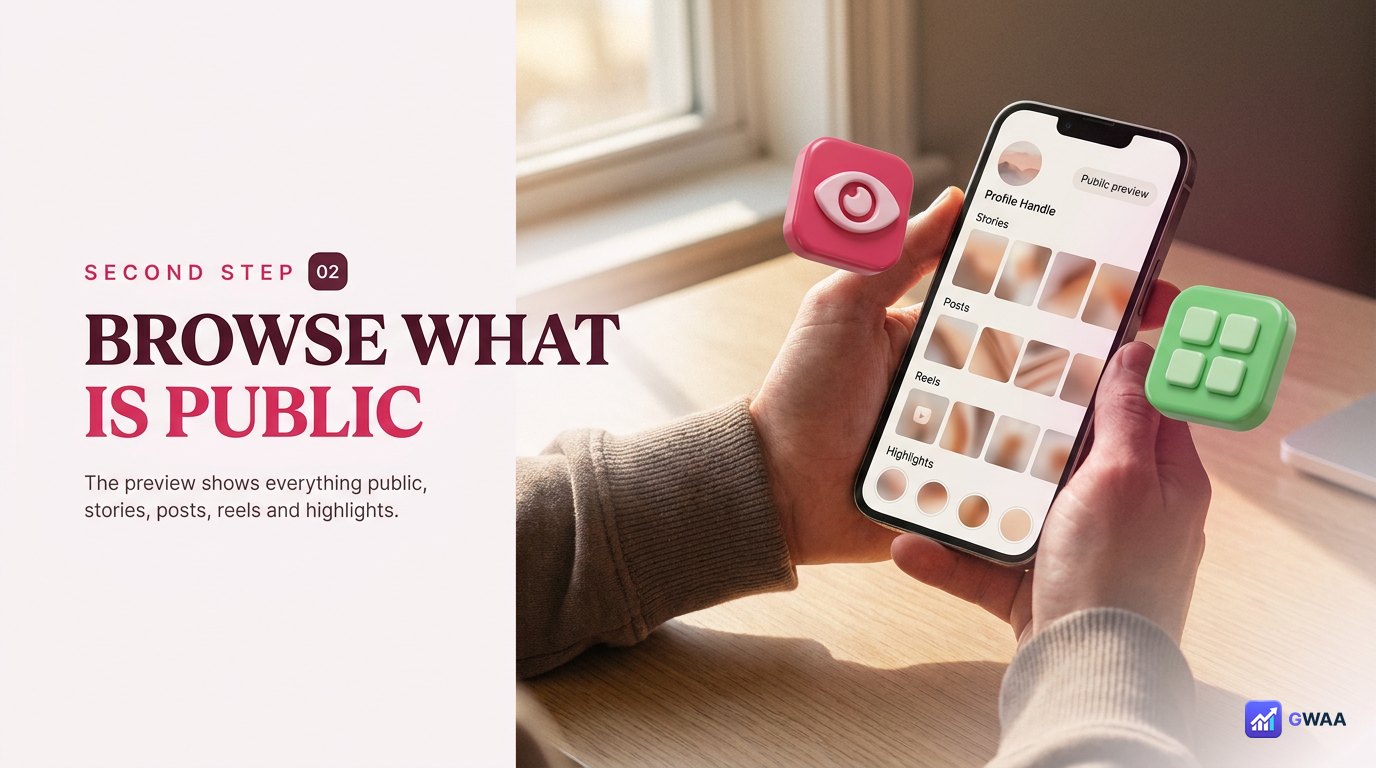
The loaded profile preview gives you the full public surface of the account in one view:
- Profile header with avatar, username, verified tick (if applicable), and the three stat tiles (Posts / Followers / Following).
- Story rings. A horizontal row of circular previews of every live (24h-or-less) story.
- Highlights row. A second row of circular covers for every permanent highlight album the owner saved.
- Posts grid. A 4-column grid of the full public feed, browsable infinitely.
- Reels tab. A toggle that switches the grid to reels-only view.
Tap any item to open it in full-screen. The interface mirrors Instagram’s own viewer closely so anyone who’s used Instagram knows the navigation immediately — tap left/right to move between stories, tap once to pause, tap the X to close.
Step 3: Save the original file
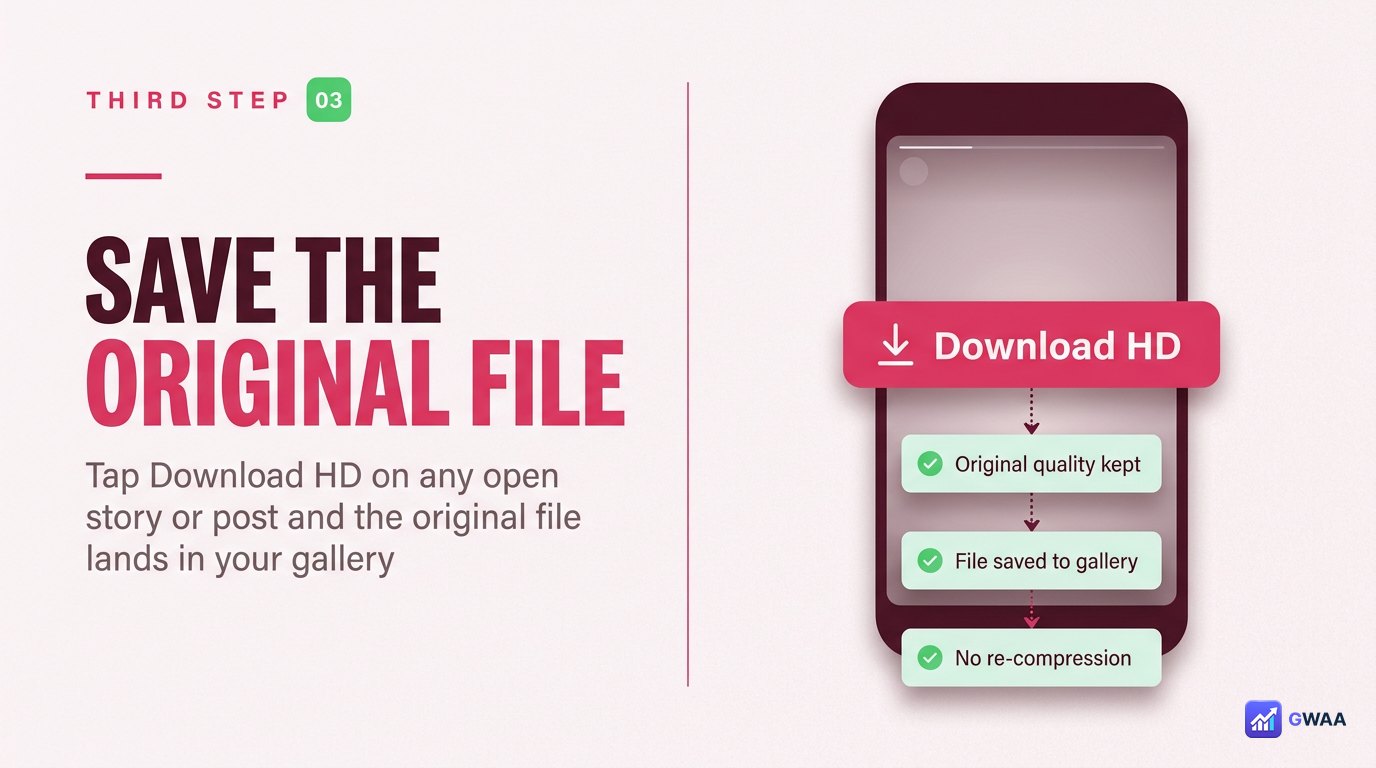
Every story, post and reel in full-screen view has a prominent Download HD button. Tap it and:
- Video content saves as an original-quality MP4 (typically 1080p, sometimes 720p depending on what Instagram has).
- Photo content saves as a JPG at original resolution.
- Both formats preserve the original aspect ratio (usually 9:16 for stories, 4:5 or 1:1 for posts).
- No watermark, no PeekViewer branding, no overlay — just the file the way Instagram serves it.
The file lands in the standard place for your device:
- iPhone: native Photos app, under Recents.
- Android: Photos or Gallery app, usually in a Downloads album.
- Desktop: your browser’s Downloads folder.
The whole flow in three taps
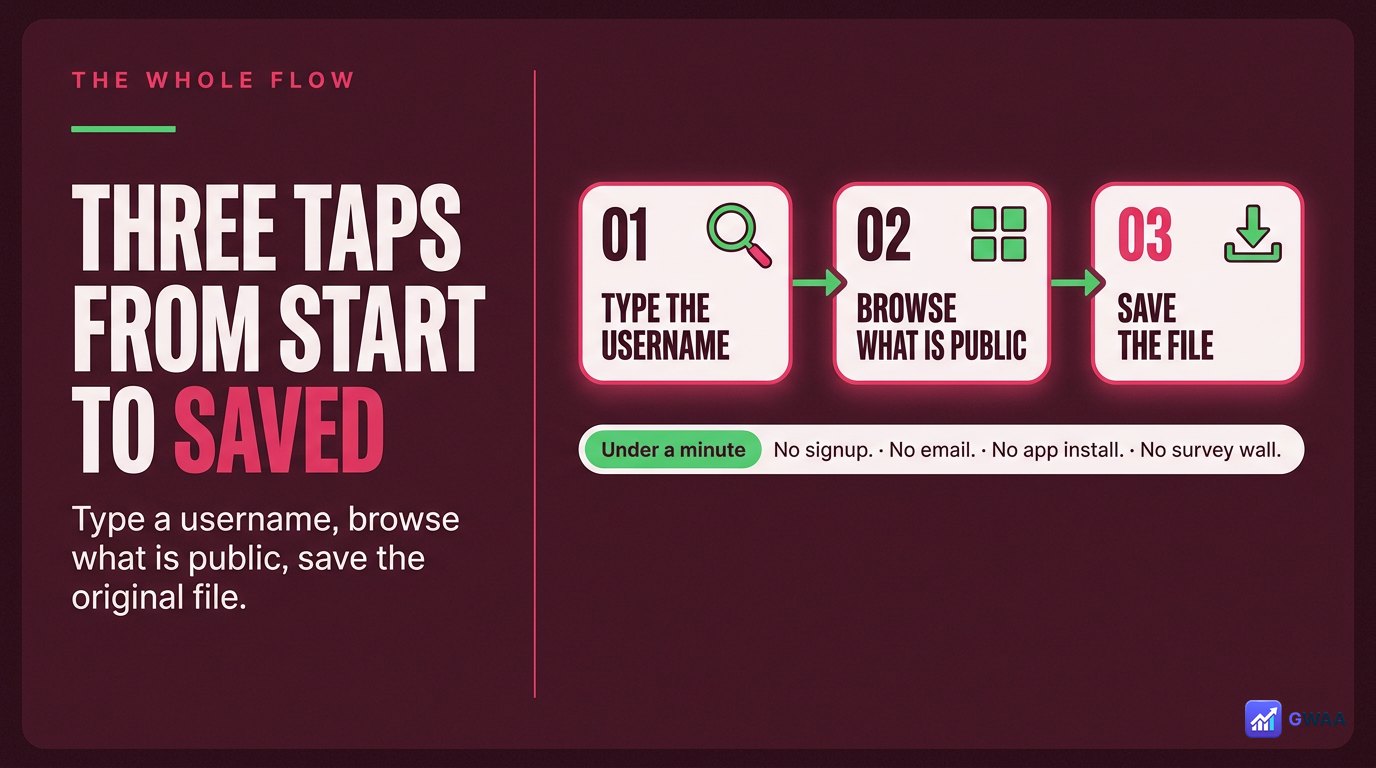
The reason the flow above is short is that there’s nothing extra in the middle. No signup. No email. No app install. No survey wall. No “watch this ad to continue”. Just the three steps. Most first-time users finish their first complete download in under a minute, which is the experience we kept testing for.
Works on every device you own
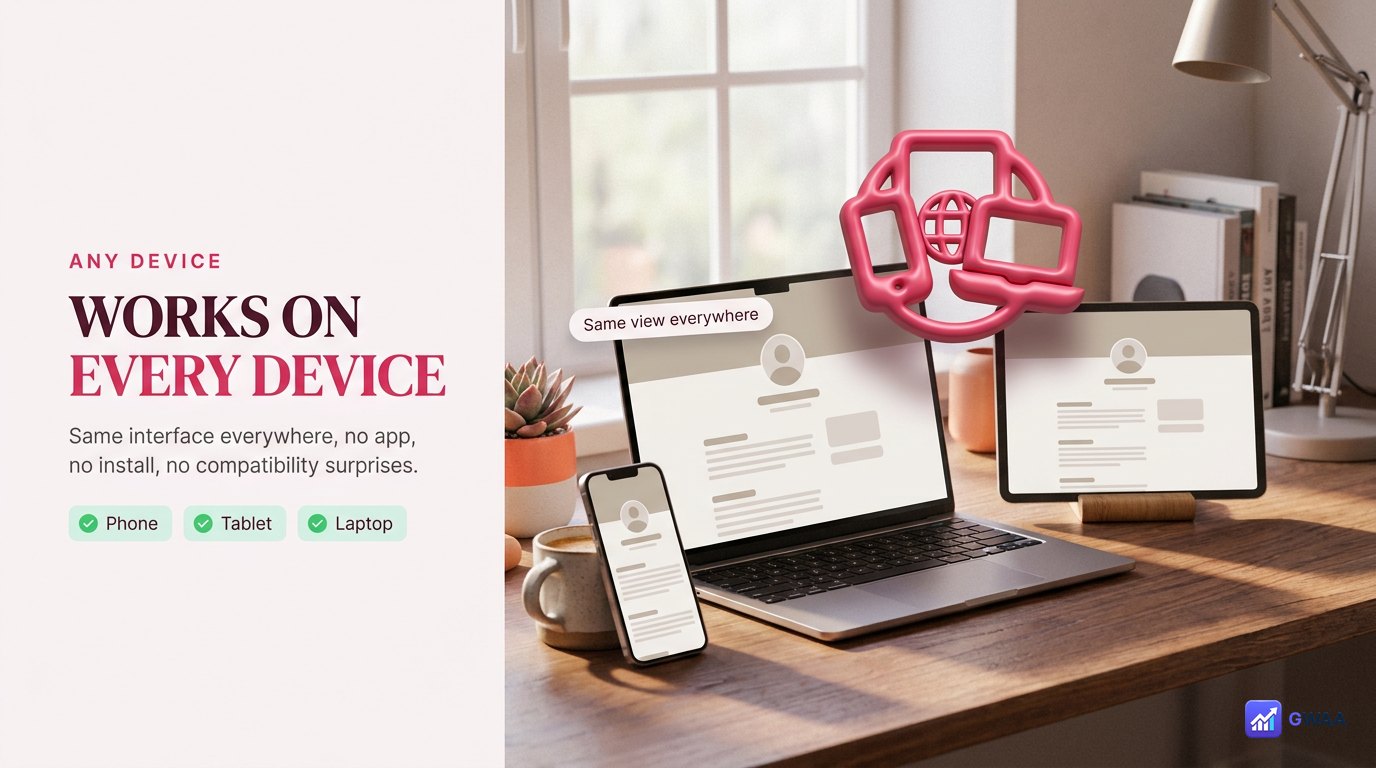
Because the whole thing runs in a normal browser, the device list is essentially “anything from the last decade.” The same URL works on:
- Modern smartphones (iOS Safari, Android Chrome) — touch-optimised UI.
- Tablets — same layout, more screen real estate, identical features.
- Laptops and desktops — full-width feed grid, keyboard shortcuts available.
- Older devices — the Instagram app may have stopped supporting them, but any modern browser still works.
One quiet win of the browser-only design: it works on devices you don’t own. Borrowed laptops, hotel computers, library PCs, work machines — you don’t leave a logged-in Instagram session behind because you never logged in to anything in the first place.
Browsing the four content types
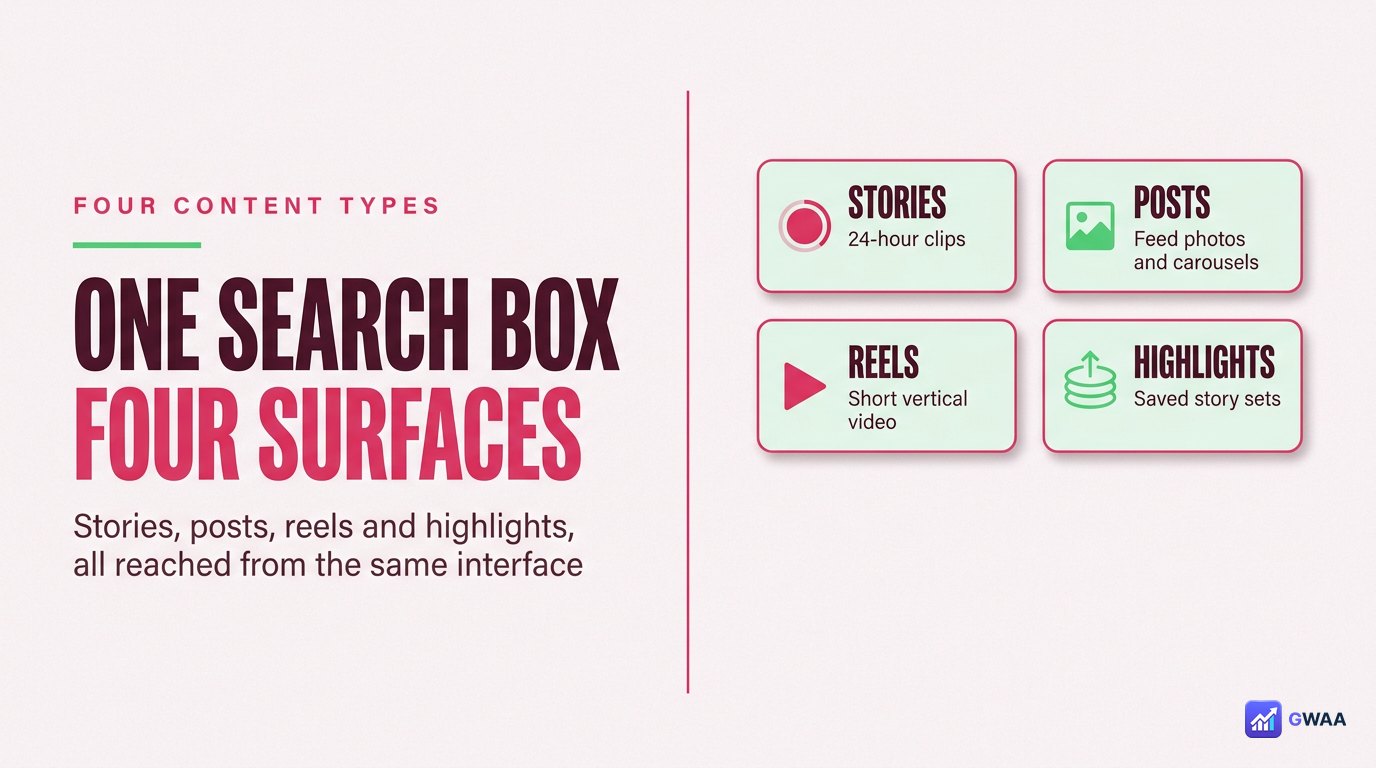
From the loaded profile, you can access four distinct content types using the same interface:
- Stories. Live, within-24h stories appear as a horizontal row of rings at the top of the profile. Tap a ring to open the story player; swipe left/right to move between stories.
- Posts. The grid below the stories. Tap any thumbnail to open the full post with caption and (if a carousel) all swipeable images.
- Reels. Click the Reels tab beneath the bio to switch the grid to reels-only view. Reels open in vertical 9:16 player.
- Highlights. The row of circular covers above the posts grid. Tap any cover to play through that highlight album sequentially.
Each content type has the same Download HD option in its viewer. The format adapts automatically — MP4 for video, JPG for photos — you don’t have to pick.
Download format choices
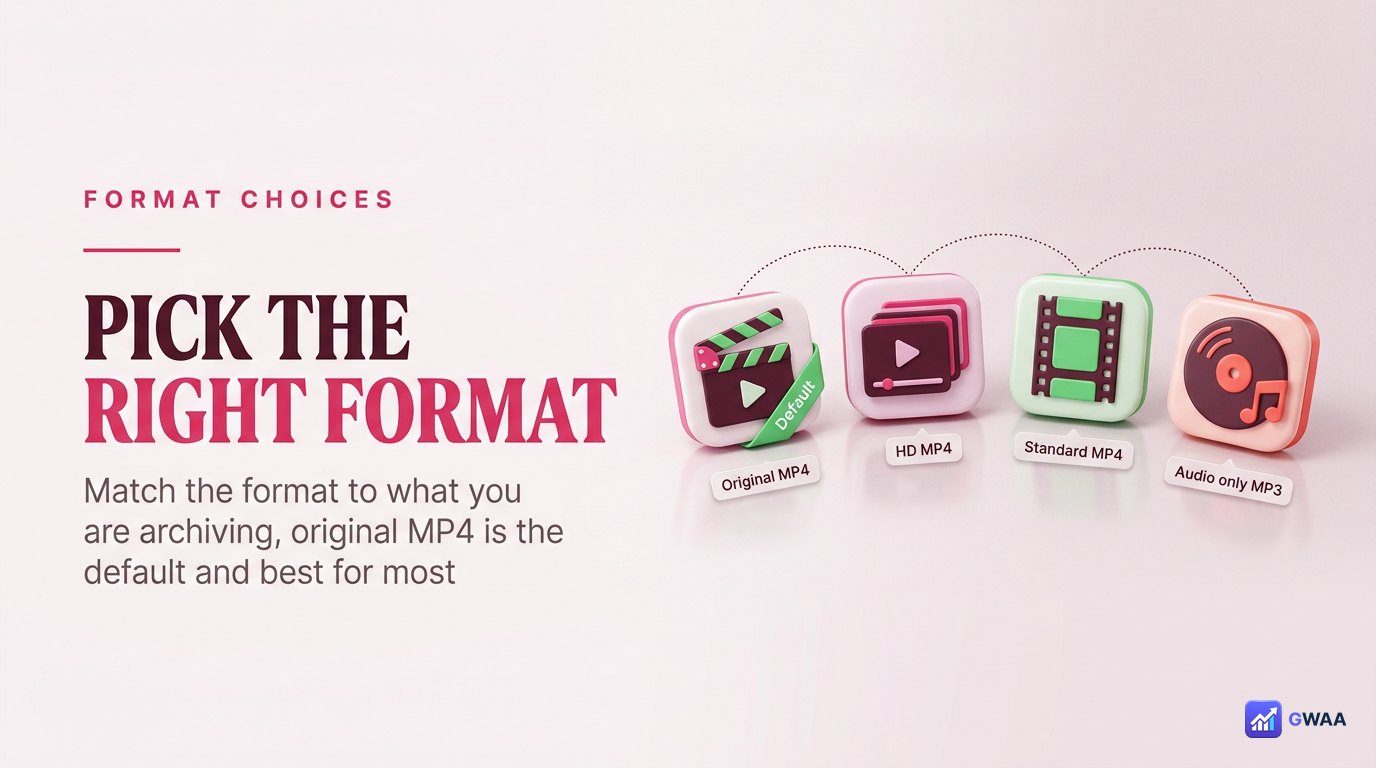
For video content, the download menu shows four options:
- Video MP4 (HD). The default. Original-quality video, plays everywhere.
- Photo JPG (original). For photo posts or photo stories, full resolution.
- Story sequence (ZIP). When viewing a whole 24-hour story batch, this option lets you save every story in one ZIP.
- Audio only (MP3). If you just want the audio from a reel or video story — useful for voice-over reference.
For 99% of use cases, the default Video MP4 / Photo JPG is the right choice. The ZIP and MP3 options exist for specific workflows (batch archive, audio editing).
Bulk-saving a whole sequence
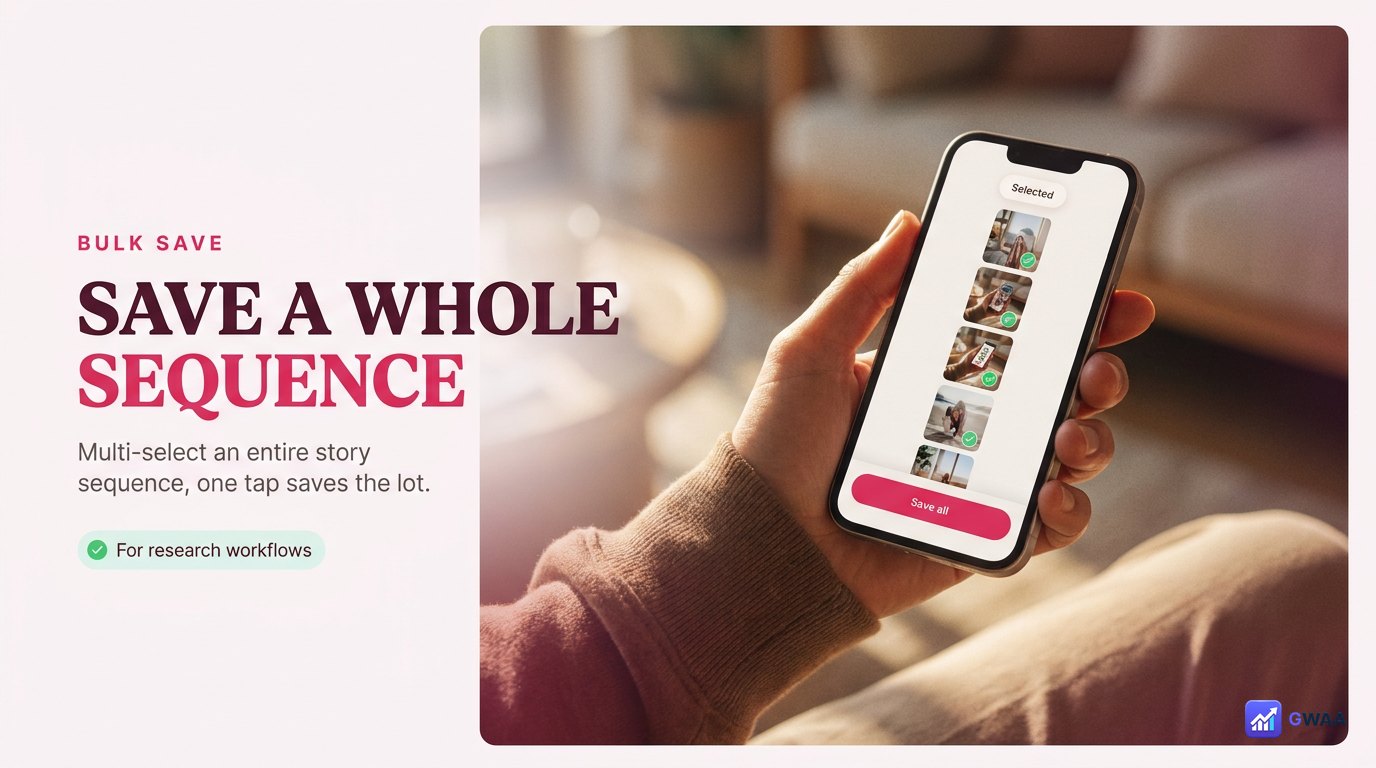
For research workflows (tracking competitor stories, archiving a creator’s whole week, etc.), open the profile and use the bulk-select mode:
- Tap Save all at the top of the story list.
- Tap individual story tiles to toggle their selection (a purple tick badge appears on selected items).
- Tap the bottom Download N stories button (where N is your selection count).
- PeekViewer packages the originals into a single ZIP and delivers it to your device.
This saves a lot of time compared to opening and downloading each story individually. Bulk-save is available on the paid plan; the free trial limits you to single-item downloads to verify the workflow.
Power-user keyboard shortcuts
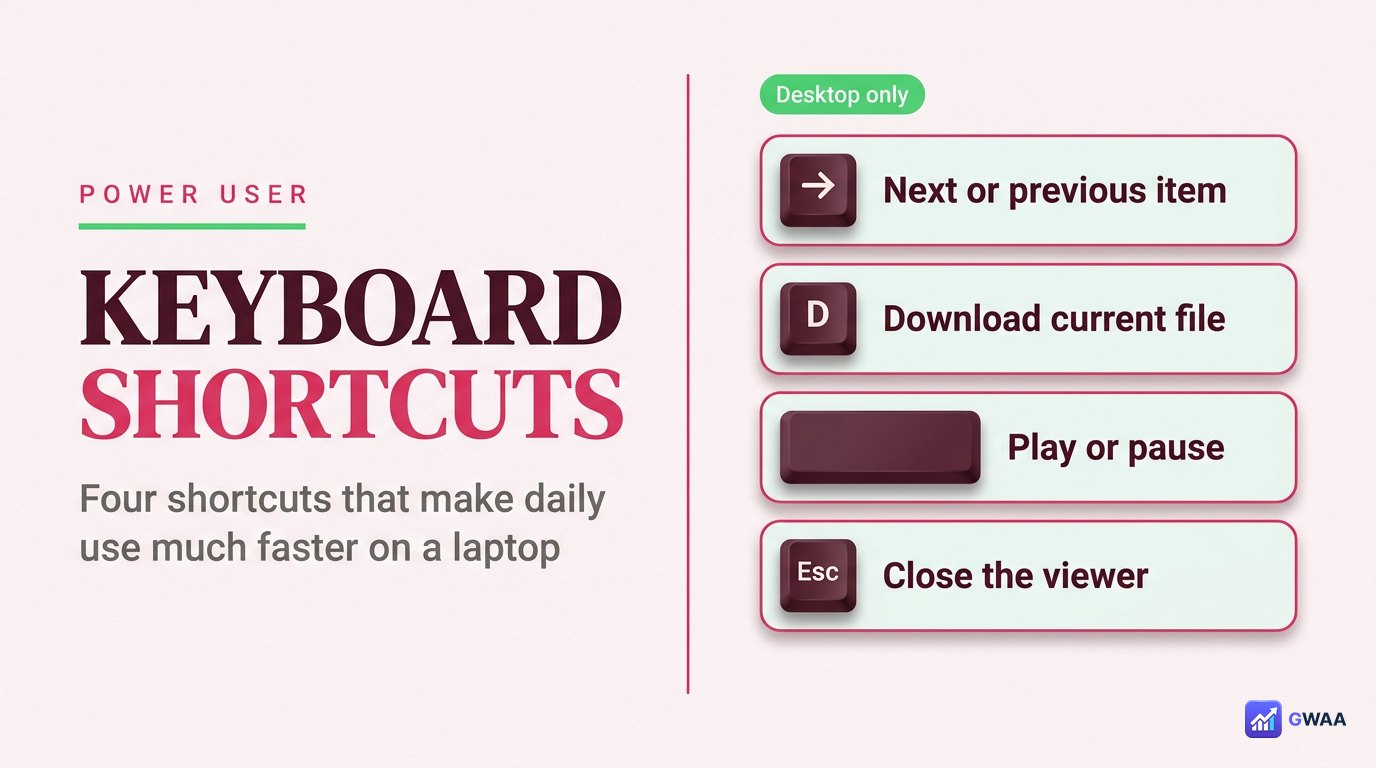
On desktop, PeekViewer has a few keyboard shortcuts that make daily use much faster:
- S then D: Save current story as MP4 immediately (no menu).
- P then D: Save current post as JPG immediately.
- Left/Right arrows: Navigate between stories or carousel slides without touching the mouse.
- H: Open the highlights view from anywhere on a profile.
The shortcuts aren’t mandatory; the UI works fine with mouse/touch. They’re a quality-of-life touch for researchers and marketers who use the tool dozens of times a day.
When something doesn’t work
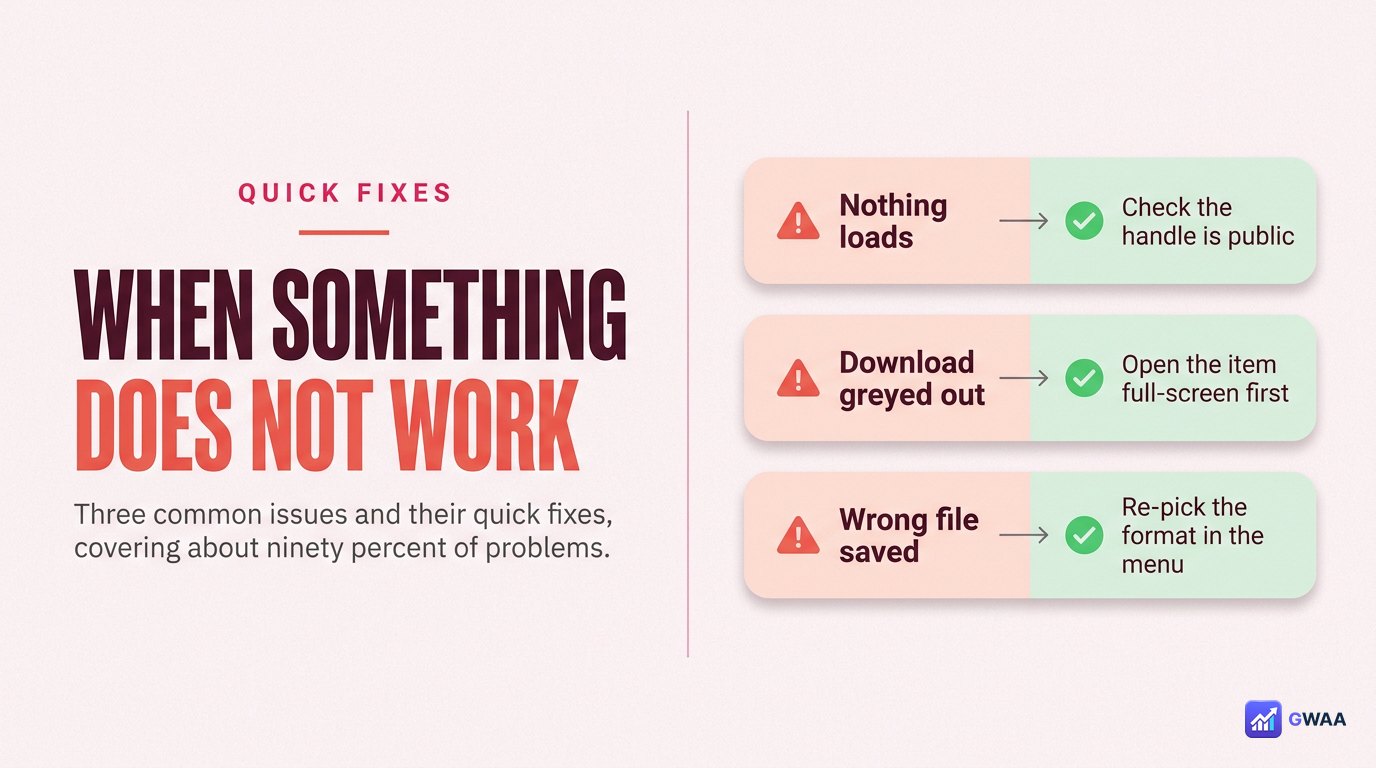
Three common issues and their fixes:
- “No stories found.” Almost always a username typo. Open the profile on instagram.com first and copy the exact handle from the URL bar.
- “This account is private.” The owner has set their account to private; no third-party tool unlocks it. The only honest move is to ask for a follow.
- “Stuck loading / spinning forever.” Usually a brief server hiccup. Hard-reload the page (Ctrl/Cmd+Shift+R), or wait 60 seconds and retry once. If multiple profiles fail in a row, PeekViewer is briefly down — try again in 30 minutes.
If a download appears to succeed but the file is missing, check your browser’s downloads folder (it sometimes saves silently rather than triggering a notification). For repeated failures, clear browser cache for peekviewer.gwaa.net and try again — a stale cached page is a common silent cause of weird behaviour.
First-timer FAQ — the questions you’re probably about to ask
A handful of questions come up consistently from people opening PeekViewer for the first time. Quick honest answers:
- Will the owner know I looked? No. Your name never appears in their viewer list, because the request comes from PeekViewer’s servers, not your account.
- Do I need an Instagram account? No. PeekViewer doesn’t use Instagram’s authenticated API at all — you can use it even if you don’t have an Instagram account.
- Is what I save legal to keep? Yes for personal viewing. Yes for research and reference. Re-sharing publicly is fine with credit; commercial re-use of someone’s content usually needs their permission, same as anywhere else online.
- Why is my download blank or zero-byte? Usually a brief server hiccup — retry once. If it persists, clear browser cache for peekviewer.gwaa.net and try again.
- Can I save to a cloud service directly? Not from PeekViewer, but most phones auto-sync the Photos app to iCloud/Google Photos, so downloads end up in the cloud within minutes.
- How recent does the cache go? The story cache typically holds public content for up to about three months past expiry — useful for recently-missed stories, not for archival from a year ago.
If a question isn’t answered here and isn’t in the troubleshooting section above, the support team responds to email within 1-2 business days — the contact link is in the site footer.
Five best practices for ethical use
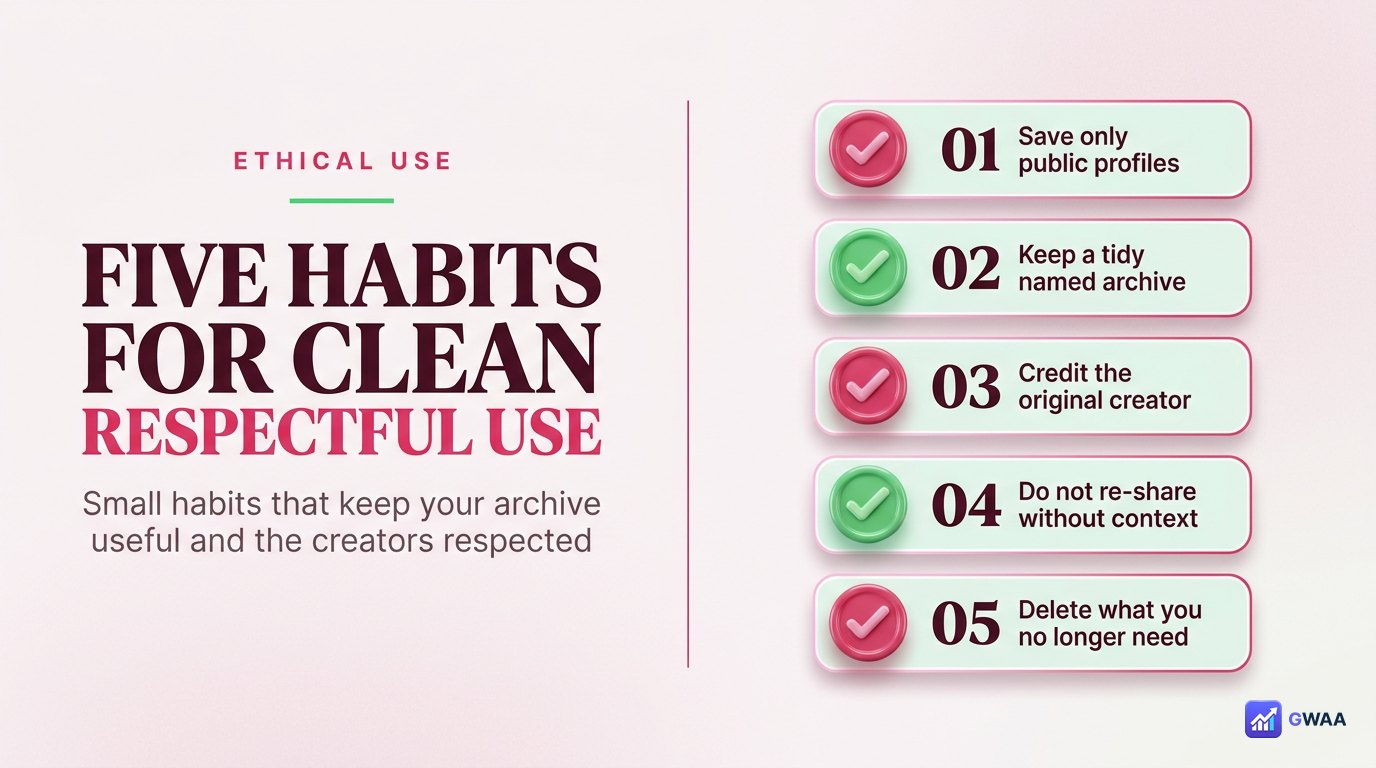
Five small habits that make a difference both for your own archive quality and for the people on the other side of the viewing:
- Use HTTPS only. Confirm the padlock in the browser bar before typing anything. PeekViewer always uses HTTPS; impostor sites sometimes don’t.
- Save originals, not screenshots. The whole point of PeekViewer is that you get the source file. A screenshot of PeekViewer’s display is a worse copy than the file PeekViewer would have given you.
- Organise downloads by year + theme. A pile of randomly-named MP4s is technically permanent and practically useless. Folders by year, sub-folders by theme — searchable in six months.
- Credit creators when re-sharing. The file is yours; the moment in it isn’t. If you re-share, link back to the creator’s public handle.
- Public content only. Don’t try workarounds for private accounts. They don’t exist; the structural lock is the right design.
Anonymous viewing is privacy, not a license. Used on public content with respect for the creators, PeekViewer is one of the cleaner research and archive tools available. Used badly — targeted harassment, stalking, lifting work without credit — it’s the same as misusing any other privacy-protecting tool. The shape of the rule is the same as anywhere else: behave the way you’d behave under your own name.
The mental model that helps: PeekViewer is essentially a friendly front-end over Instagram’s public web pages. Everything it does, a logged-out browser could technically do too — PeekViewer just makes it efficient and pleasant. Once you internalise that framing, the tool’s capabilities and limits become intuitive.
Explore more across GWAA: View profiles anonymously · View highlights anonymously