PeekViewer downloads any public Instagram content — stories, posts, reels and highlights — in original HD quality as MP4 (video) or JPG (photo). No watermark, no overlay, no PeekViewer branding, original aspect ratio preserved. Files land in your normal phone gallery or downloads folder. Public accounts only; private profiles, DMs and deleted content cannot be downloaded by any tool.
⚡ Key takeaways
- Original-quality MP4 (videos) or JPG (photos) — no re-encoding.
- No PeekViewer watermark or overlay anywhere on the file.
- All four content types: stories, posts, reels, highlights.
- Files land in your normal phone gallery or Downloads folder.
- Public accounts only — private profiles structurally locked.
Downloading is where PeekViewer earns its keep over screen recording. This guide walks through what you can download, the formats and quality you get, the three-tap flow, where the files actually live afterwards, the structural limits, and the small set of best practices that turn casual downloads into a usable archive.
What you can download
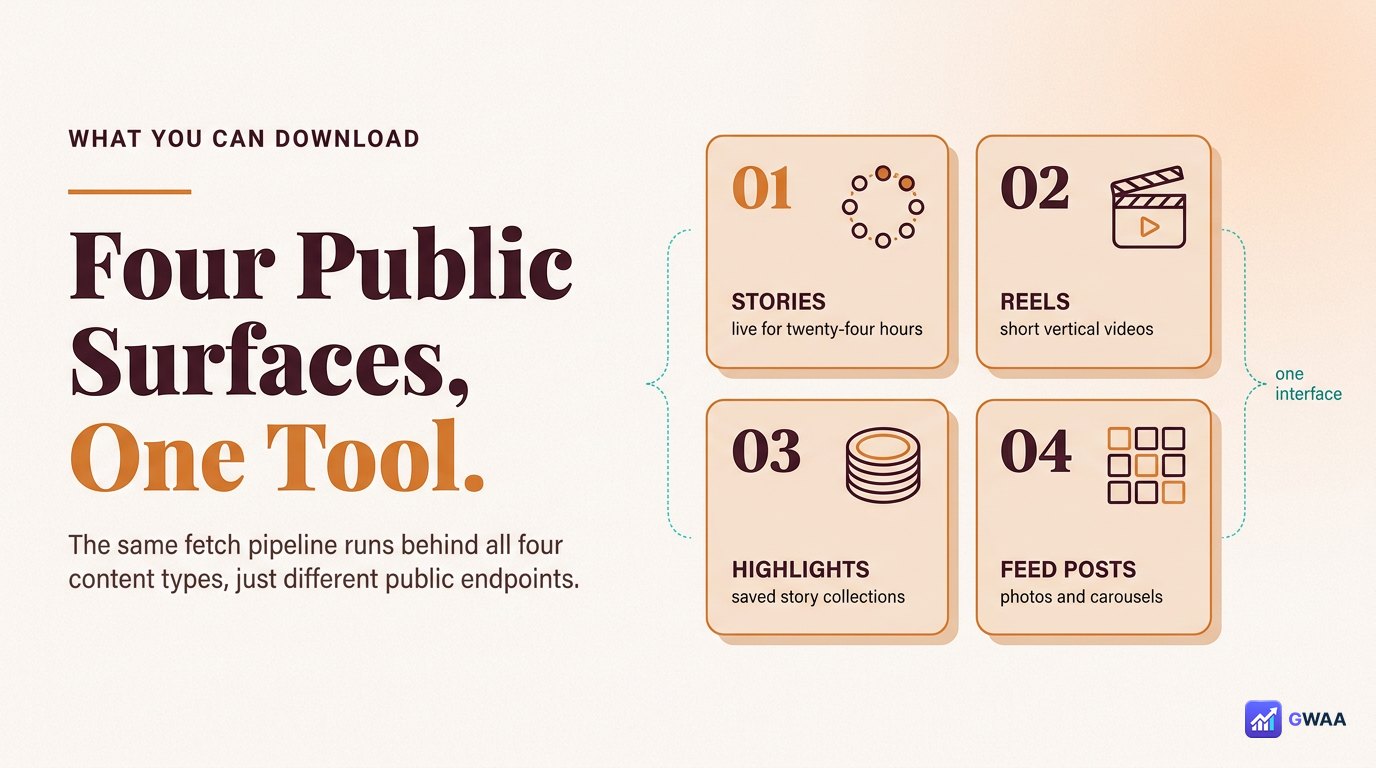
PeekViewer covers all four public Instagram surfaces from one interface:
- Stories. Live 24-hour stories, plus the cache window for recently-expired public stories (~3 months).
- Posts. The full grid feed — every public post on a profile, browsable by date, downloadable individually or as carousels.
- Reels. Full reel library, vertical 9:16 MP4 at original resolution.
- Highlights. Every circular highlight album the owner saved permanently. Often more interesting than the live stories because the owner curated these to keep.
The same Download HD button appears in each viewer; the format adapts automatically (MP4 for video content, JPG for photos). You don’t have to pick the format; PeekViewer matches whatever Instagram is currently serving.
Two file formats, both universal
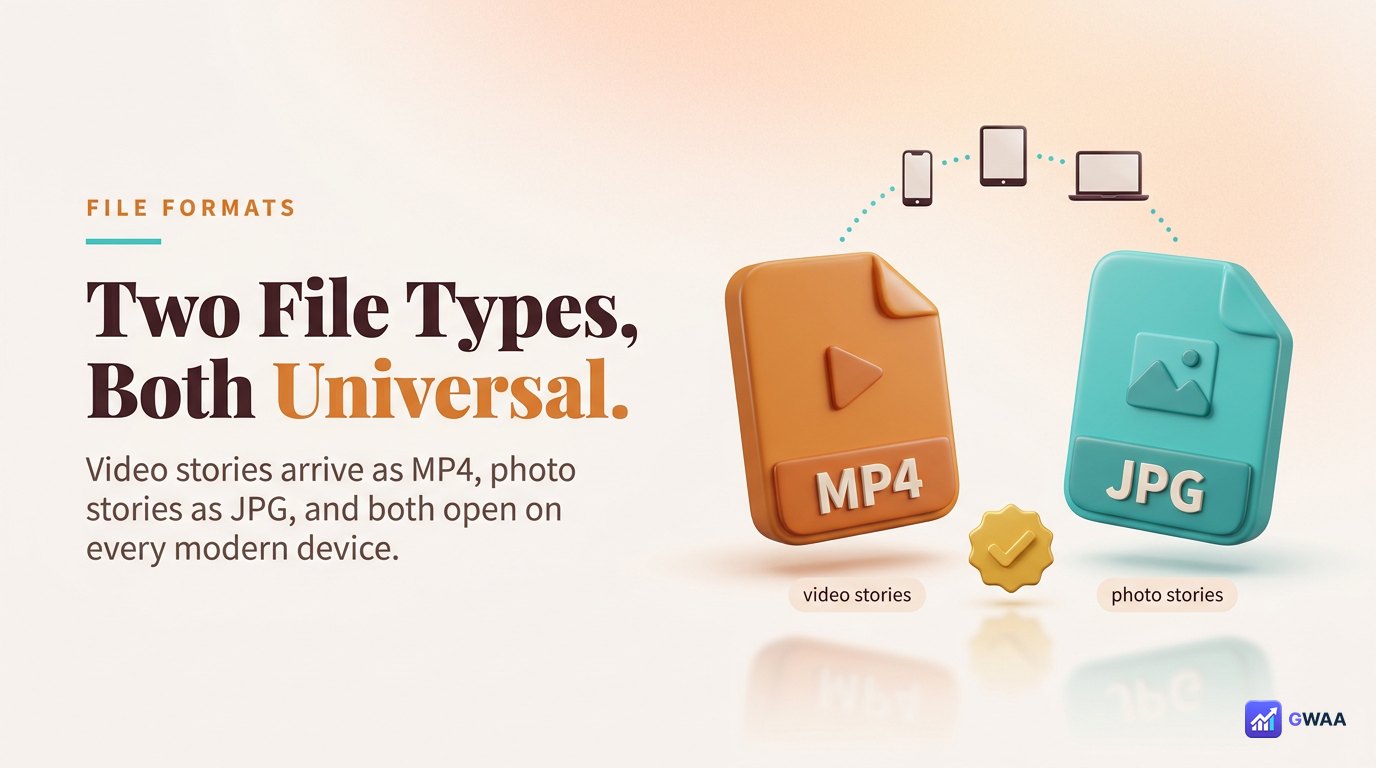
You only ever get two file types from PeekViewer downloads:
- MP4 — for video stories, video posts, reels. Plays in QuickTime, VLC, the native Photos app, every browser, every modern editor. H.264 codec inside, standard everywhere.
- JPG — for photo stories, photo posts. Opens in any image viewer, drops into design tools natively, prints cleanly.
No proprietary formats, no exotic codecs, no “you need our app to open this” trickery. The MP4s and JPGs are the same files Instagram would have served the Instagram app; PeekViewer just hands them to your device instead of streaming them ephemerally.
Quality and watermarks
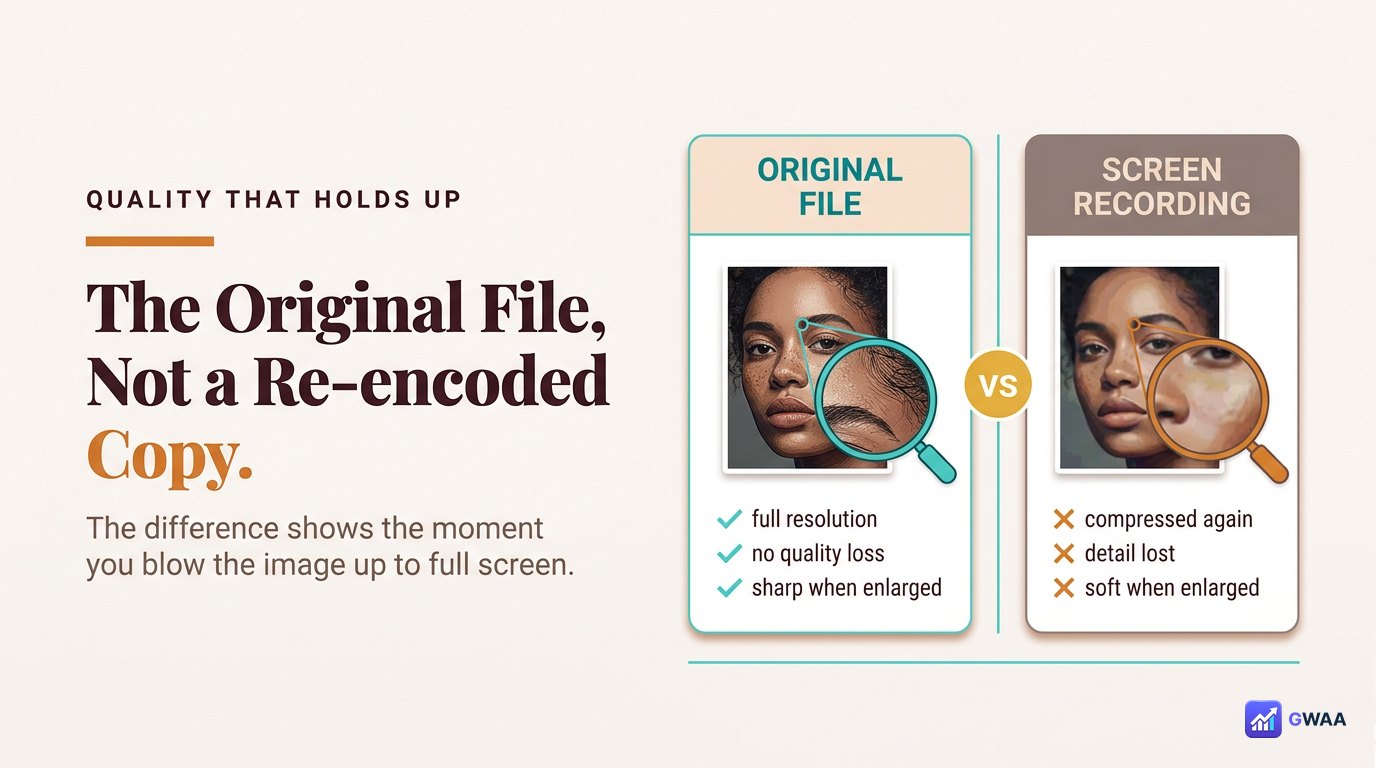
The key quality property: PeekViewer serves the original file, not a re-encoded copy. That means:
- Original resolution. Whatever Instagram is currently serving (usually 1080p for video, 1080-wide for photos).
- Original aspect ratio. 9:16 stories arrive as 9:16; 4:5 posts arrive as 4:5. No letterboxing, no padding.
- Original colour space. No re-encoding through your phone’s codec pipeline, no colour shifts in skin tones, gradients or sunsets.
- No baked-in UI. No progress bars, no username overlay, no status bar caught in the frame.
The watermark situation matters more than people initially realise:
- No PeekViewer logo on the frame. Test once with a public profile to confirm.
- No corner badge or QR code. These appear in cheaper free tools.
- No EXIF metadata added. The file’s metadata isn’t modified to add PeekViewer tags.
- Original aspect ratio kept. No black bars added to standardise dimensions.
How the download works
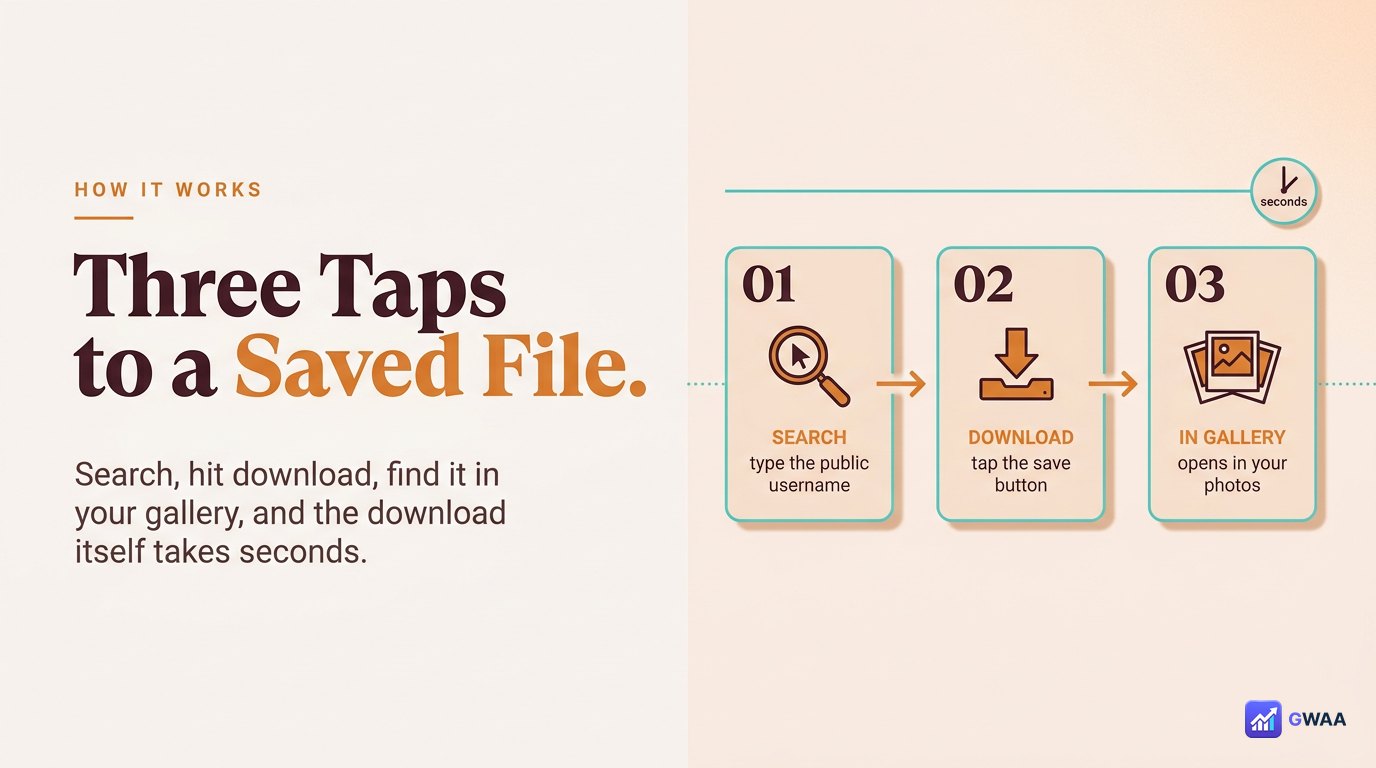
The flow from search to saved file is three taps:
- Type the public username. The profile loads with all four content types visible.
- Open a story/post/reel. Tap any item to enter full-screen viewer mode.
- Tap Download HD. The original MP4 or JPG lands in your gallery or downloads folder.
The download itself takes a few seconds depending on file size — a 15-second story video is typically 2-8 MB; a photo is 200-500 KB. Bulk downloads (a whole story sequence) take proportionally longer; large archives can run for a minute or two on slow connections.
Where saved files live
One question that surprises first-time users: where does the file go? The honest answer is — nowhere exotic. Saved files land in:
- iPhone: the native Photos app, under “Recents”. Just like a photo you took yourself.
- Android: the Photos / Gallery app, usually under a “Downloads” album or the general camera roll.
- Desktop: the standard Downloads folder for your browser, named like “story_username.mp4”.
There’s no separate “PeekViewer archive” folder, because PeekViewer has nothing to do with the file at this point. It’s a normal file on your device — move it, rename it, edit it, share it through any normal share menu, drop it into any chat app, attach it to any email.
Downloading on phone vs computer
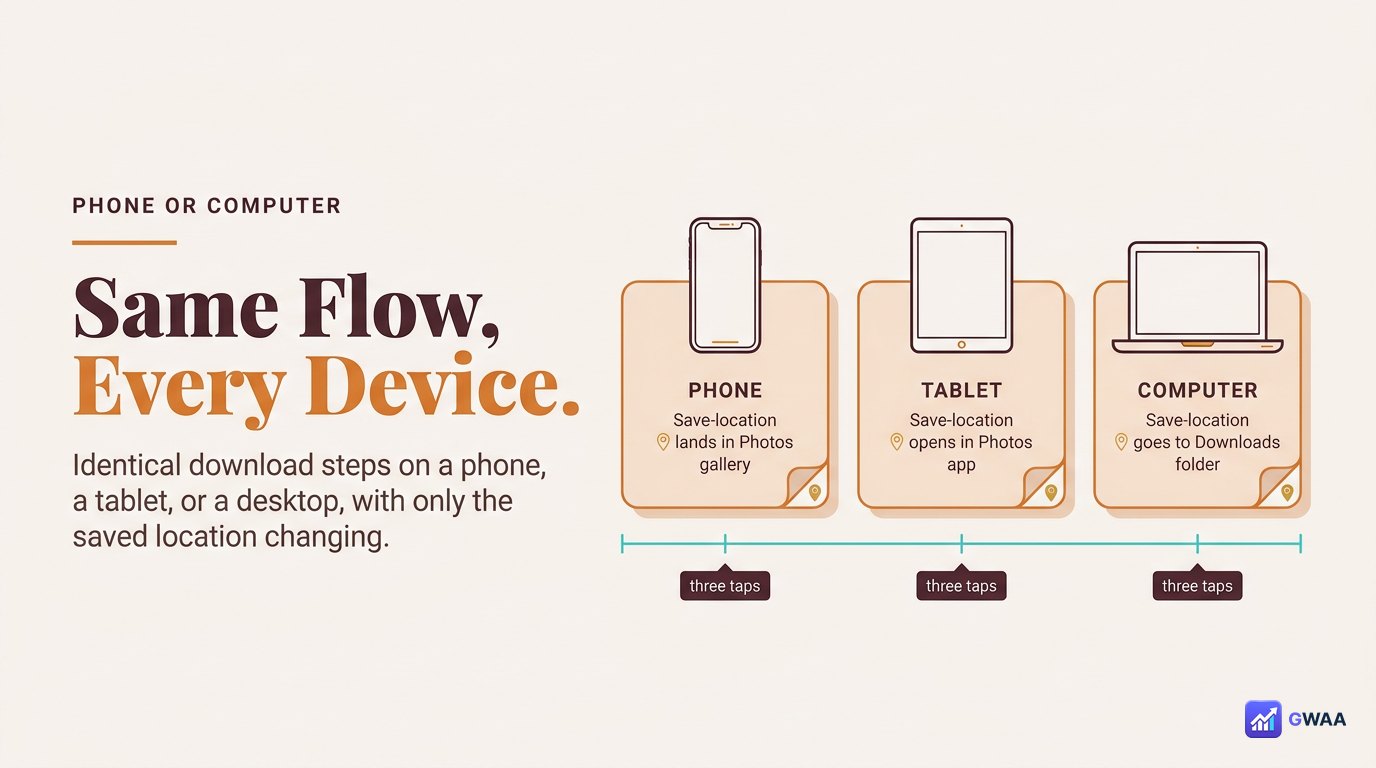
The download flow is identical across devices, but the experience differs slightly:
- Phone (mobile): Tap Download HD; iOS may show a save-to-Photos prompt; Android usually saves silently. File ends up in the gallery within a few seconds.
- Tablet: Same as phone — just a bigger screen.
- Laptop/desktop: Browser shows a download progress indicator (bottom of window in Chrome, etc.); file lands in standard Downloads folder; you can open it directly or move it elsewhere.
For bulk downloads or archive workflows, laptop is genuinely faster because you can move files into named folders as they arrive. Phone is better for spot-saves of individual stories you don’t want to lose.
Bulk-saving a whole sequence
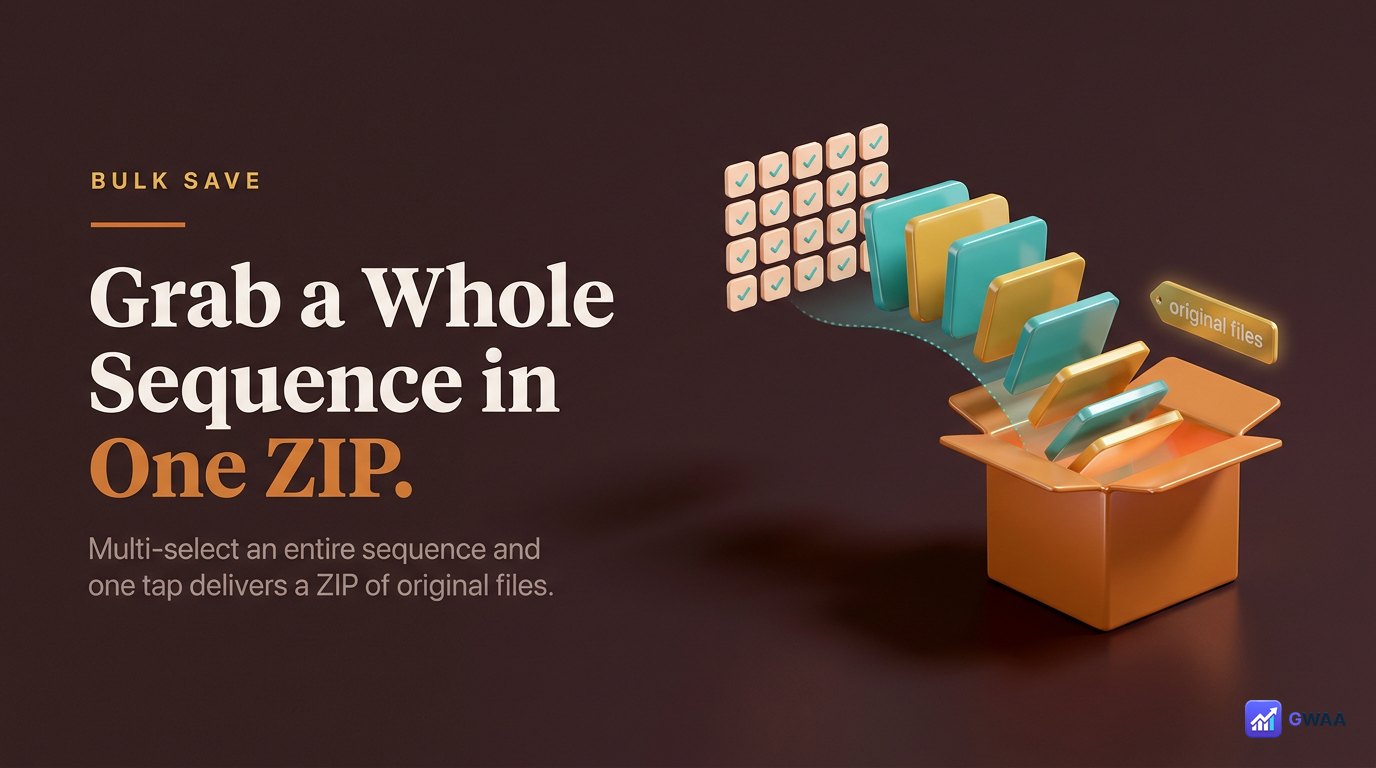
For research workflows or archive sweeps, the bulk-save mode beats individual downloads. From any loaded profile:
- Tap Save all at the top of the stories list.
- Tap individual story tiles to toggle their selection (a rose tick badge appears on selected items).
- Tap the bottom Download N stories button when ready.
- PeekViewer packages the originals into a ZIP file and delivers it to your device.
This is the tool you reach for when an account drops a 20-story launch sequence, when a friend posts a whole wedding day, or when you’re archiving a creator’s output for a research project. Bulk-save is paid-plan only; the free trial limits you to single-item downloads.
When downloading is genuinely useful
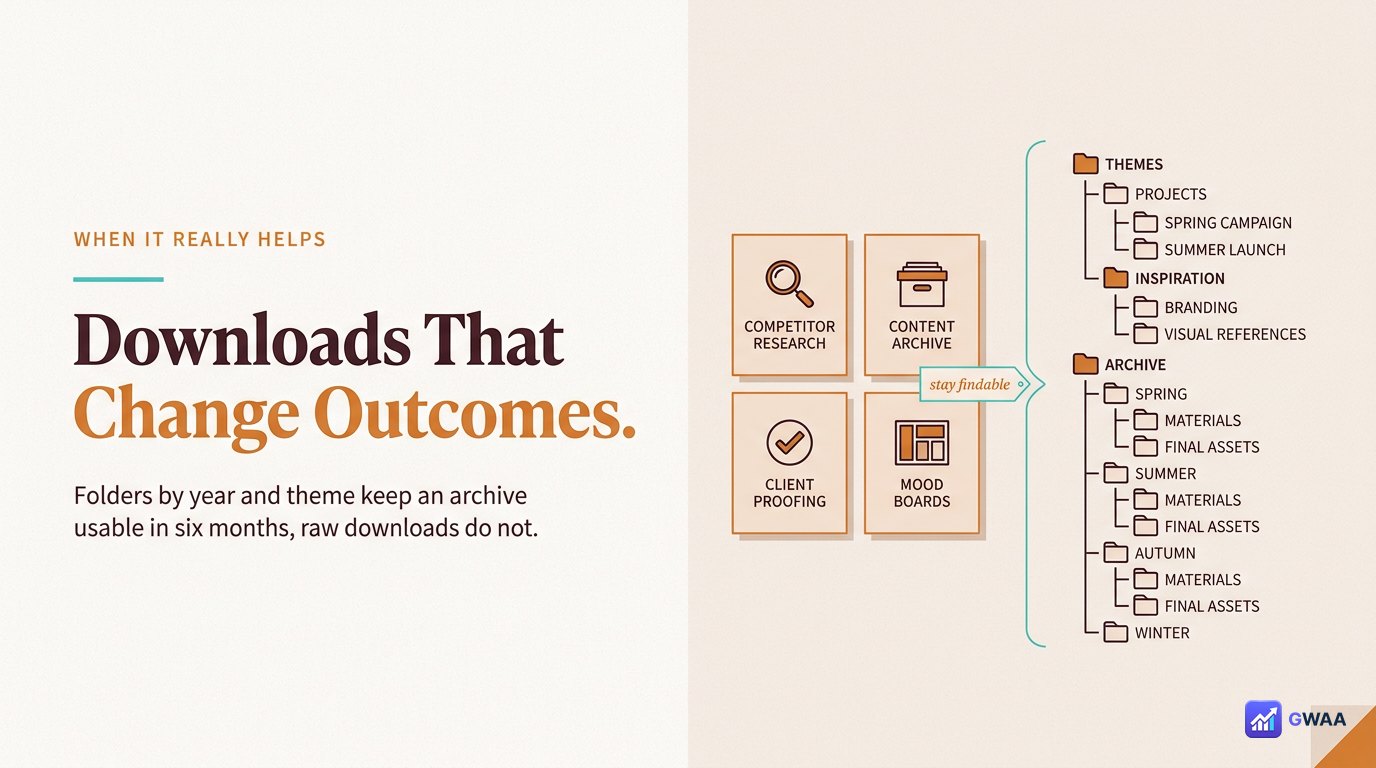
Four use cases where original-quality download genuinely changes outcomes:
- Design references. Saved stories drop into Figma, Photoshop, Procreate, Premiere at original quality — usable as direct moodboard input.
- Brand monitoring archives. Year-long competitor tracking only works if every entry is original quality; a year of screen-recordings is unusable for trend analysis.
- Re-sharing with credit. A “via @creator” re-post should show off the creator’s craft, not your degraded recording of it.
- Personal memory keeping. The friend’s wedding teaser, the family holiday clip — deserve original quality so they hold up when you re-watch in five years.
None of those benefit from a screenshot. All of them benefit from a real downloaded file with original quality preserved.
The limits (and they’re honest)
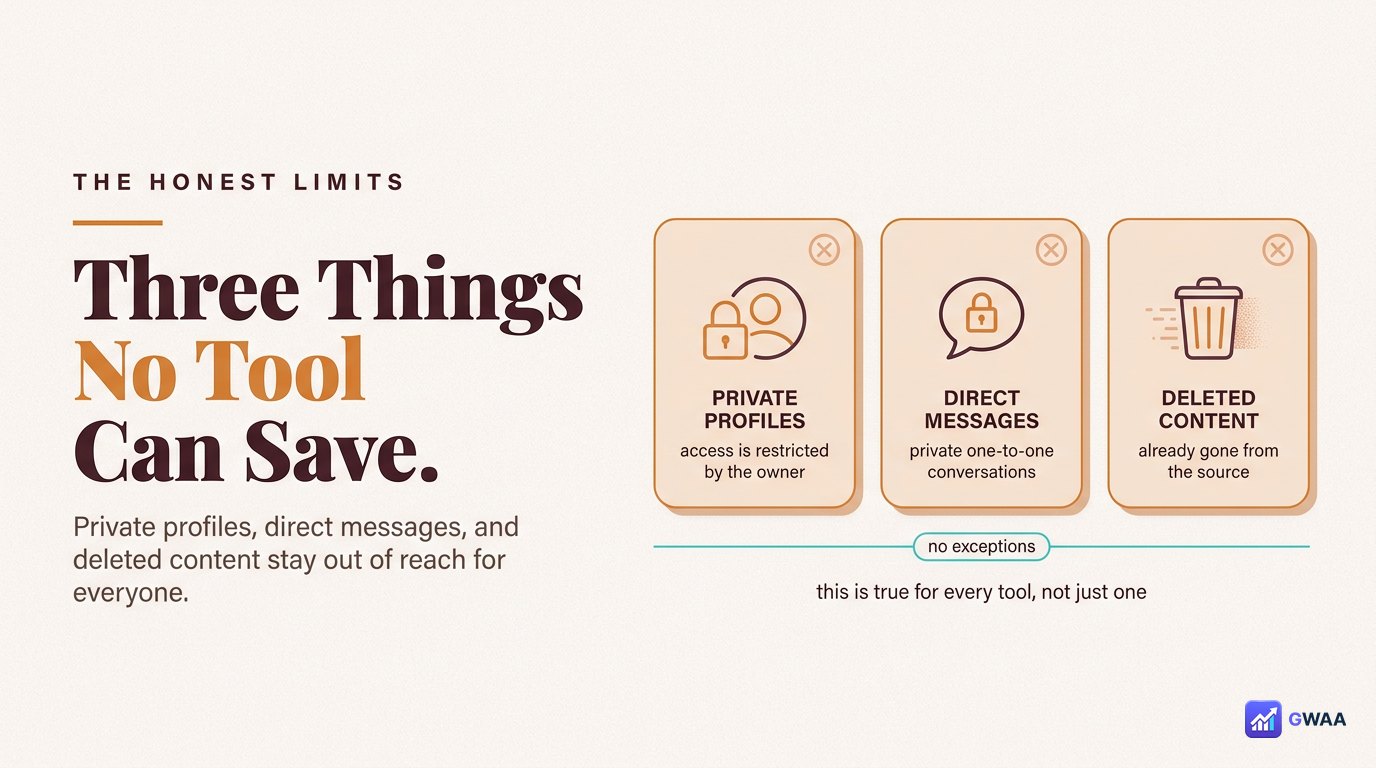
Three categories you cannot download, no matter what tool you try:
- Private accounts you don’t follow. Instagram’s server refuses to release private content to anyone outside the approved follower list. No tool overrides this; the lock is at Instagram, not in the request format.
- Direct messages. DMs require an authenticated session as the account that received them. PeekViewer never authenticates, so DMs are off-limits.
- Already-deleted content. Once Instagram removes content, its public endpoint serves nothing for it. Cache layers may hold recent expiries briefly (~3 months) but long-deleted content is unrecoverable.
Any tool promising to download these is misrepresenting how Instagram’s server works. PeekViewer’s honesty about the limits is itself a marker of legitimacy — honest tools all draw the same line.
How long downloads stay available
Once a file is on your device, it’s yours indefinitely. PeekViewer doesn’t retain the right to revoke access or delete it. Three notes on retention:
- On your phone/laptop: Permanent — lives there until you delete it.
- On PeekViewer’s cache: Recently-fetched stories sit on cache for ~3 months; past that, the cache rotates out.
- On Instagram: Live stories: 24 hours, then gone. Posts and highlights: until the owner deletes them.
If you genuinely want long-term preservation of something, the move is to download it as soon as you see it (while it’s still on Instagram and PeekViewer can fetch it) and then back the file up to a cloud service. Once it’s in your phone’s photo gallery, iCloud or Google Photos sync handles the cloud step automatically.
Five rules for a clean download archive
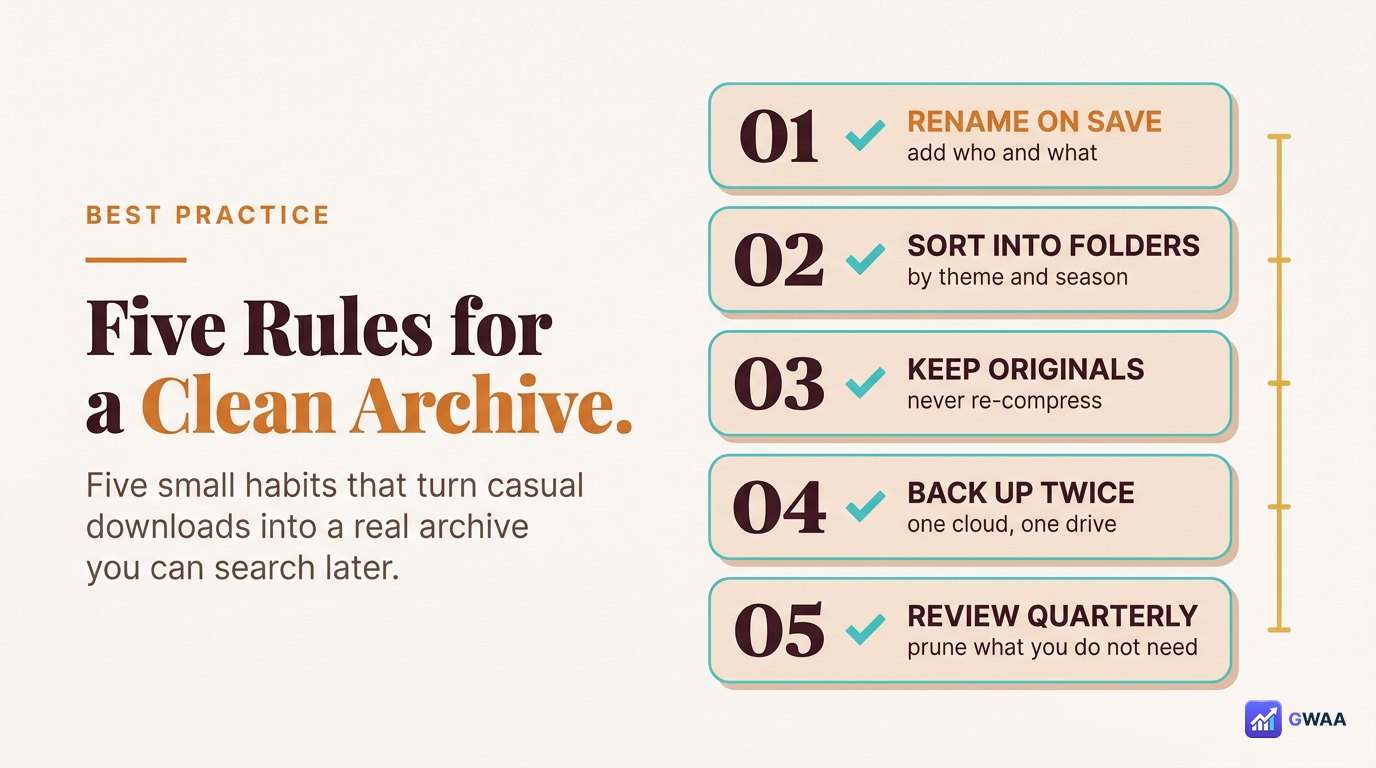
Five small habits that turn casual downloads into a real archive:
- Save the original file, not a screenshot. The whole point of downloading is keeping full quality — a screenshot of PeekViewer’s display is a worse copy than the file PeekViewer gives you.
- Pick MP4 over GIF, every time. GIF crushes colour and motion; the result is worse and larger.
- Back up to cloud once. Phones break, cloud doesn’t. iCloud or Google Photos auto-sync handles it.
- Credit creators if re-sharing. The file is yours; the moment in it isn’t. Link back to the original handle.
- Public content only. Don’t chase private-account workarounds. They don’t exist.
Practical tips for big batches
If you find yourself downloading more than a handful of items in a session, a few practical patterns make the experience smoother:
- Use Wi-Fi for bulk pulls. A 100-story batch can be several hundred MB — better not on metered cellular.
- Free up storage first. Phones with low free space sometimes silently truncate downloads. Aim for 1 GB+ free before a big batch.
- Plan a rest minute. PeekViewer rate-limits aggressively to keep servers responsive for everyone; pause a minute between very large pulls and you’ll see fewer mid-batch errors.
- Save the bulk ZIP, not individual files. The ZIP option packs originals once and you can sort offline; tap-saving fifty stories individually triples the network round-trips.
- Verify a sample before bulk. Always tap one story and confirm the download works on this profile before kicking off a batch — saves the “all 30 stories failed” surprise.
These are micro-optimisations that don’t matter for casual one-off saves; they matter when archive workflows are part of your week.
A quick word on file naming
Once a file is in your gallery, the default filename PeekViewer ships is helpful but generic — story_username_timestamp.mp4. For an archive you’ll come back to, take the extra ten seconds to rename meaningfully: wedding-2026-friend.mp4, brand-launch-day1.mp4, recipe-pasta-carbonara.jpg. Future-you will be grateful when scrolling through a hundred randomly-named MP4s six months from now.
The bottom line
PeekViewer downloads are the file Instagram already served, kept untouched. Original quality, no watermark, no overlay, in your normal phone gallery within seconds. The architecture means you save the bytes the Instagram app would have streamed — same resolution, same aspect ratio, same colour space.
Used on public content with respect for the people creating it, downloading turns the 24-hour Instagram clock into your problem rather than the platform’s. The moments worth keeping — family, friends, references, your own work — outlive any platform timer, in any format you can edit or re-share.
One last detail worth mentioning: downloaded files have no DRM and no expiry. Once they’re on your device, they’re yours forever — copy them to a backup drive, share them privately, edit them in any tool. Unlike Instagram’s in-app save which lives only within Instagram, PeekViewer downloads are genuinely portable files you fully control.
Explore more across GWAA: Download highlights · Download Reels without watermark