If PeekViewer isn’t working, the cause is almost always one of four things: the username is mistyped, the account is private, your browser cache is stale, or the service is briefly down. Verify spelling, confirm the account is public (no padlock icon), hard-reload the page (Ctrl/Cmd+Shift+R), then clear browser cache for the last hour. About 90% of failures resolve in under a minute.
⚡ Key takeaways
- Most failures = wrong username, private account, stale cache, brief downtime.
- Verify spelling first — lowercase, no @, exact dots and underscores.
- Private accounts (padlock icon) cannot be unlocked by any third-party tool.
- Hard-reload + clear cache fixes most stale-state weirdness.
- Try a different browser to isolate browser-specific bugs.
“PeekViewer not working” is the most common search bringing users to this guide, and almost always the cause is one of the same four things. This walkthrough covers each in order — the cheap fixes first, the structural “no tool can fix this” cases last — so you don’t waste time clearing cache when the real issue was simply a typo in the username.
Four causes that cover ninety percent
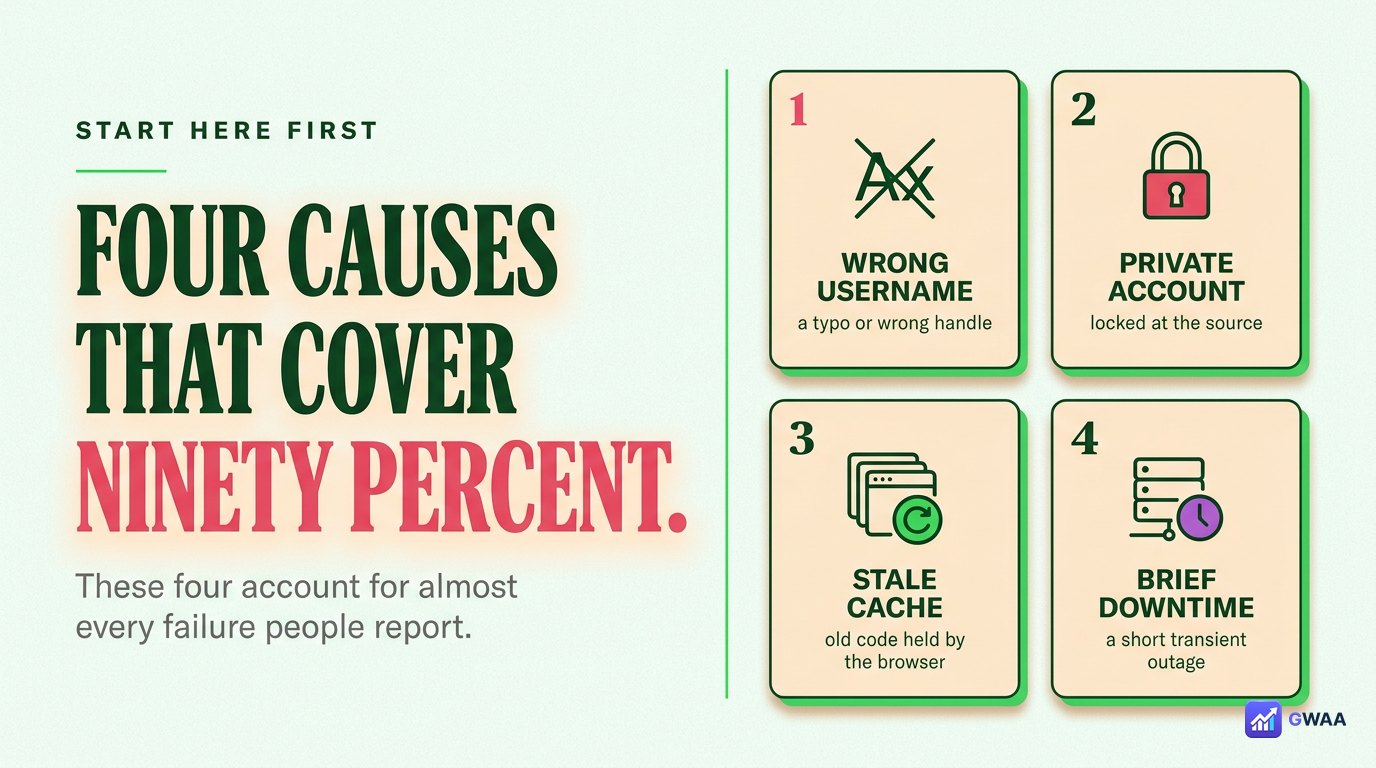
Before diving into specific symptoms, the four causes account for almost every reported failure:
- Wrong username. One typo and PeekViewer finds nothing — not because the profile doesn’t exist, but because the spelling doesn’t match.
- Private account. Instagram’s server refuses to release private content to anyone outside the approved follower list. No tool overrides this.
- Stale browser cache. Your browser is holding an old cached version of PeekViewer’s code that conflicts with the current site.
- Brief service downtime. PeekViewer’s servers occasionally hiccup for a few minutes during Instagram endpoint changes.
The rest of this guide diagnoses each, in the right order — cheapest fixes first — so you arrive at the real cause efficiently.
Issue 1: Profile won’t load (verify the username)
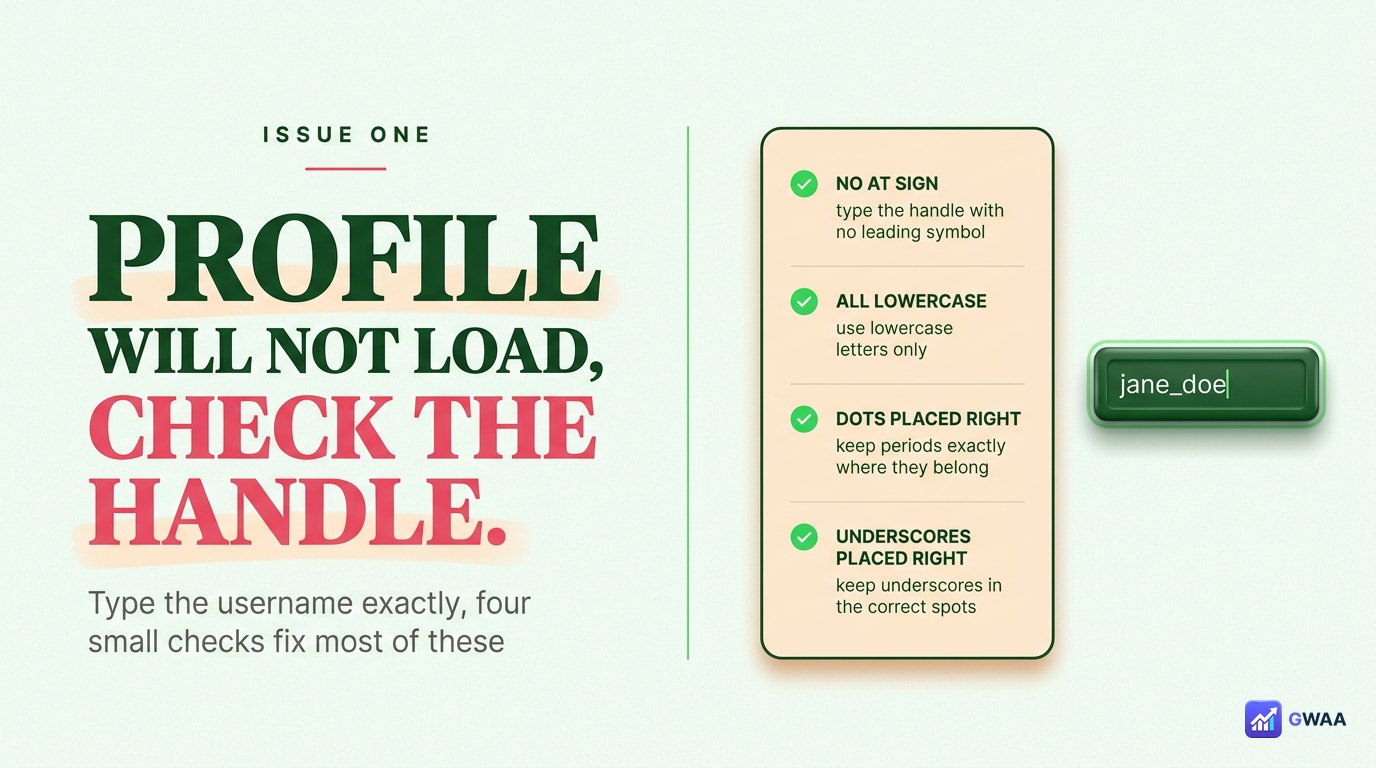
The most common and most embarrassing cause: the username is wrong. Four small checks:
- No @ symbol. Type just the handle. The @ confuses some search resolvers.
- All lowercase. Instagram normalises internally, but lowercase is universally safe.
- Dots and underscores in the right places. travel.diaries and travel_diaries are two different accounts.
- Copy from Instagram’s URL. Open the profile on instagram.com and copy the handle from the address bar — that’s the canonical version.
If after copy-paste the profile still doesn’t load, the username probably doesn’t exist on Instagram, or the account was deleted/suspended. Verify by opening instagram.com/<username> directly — if Instagram itself doesn’t show the profile, no third-party tool can.
Issue 2: Padlock icon — private account
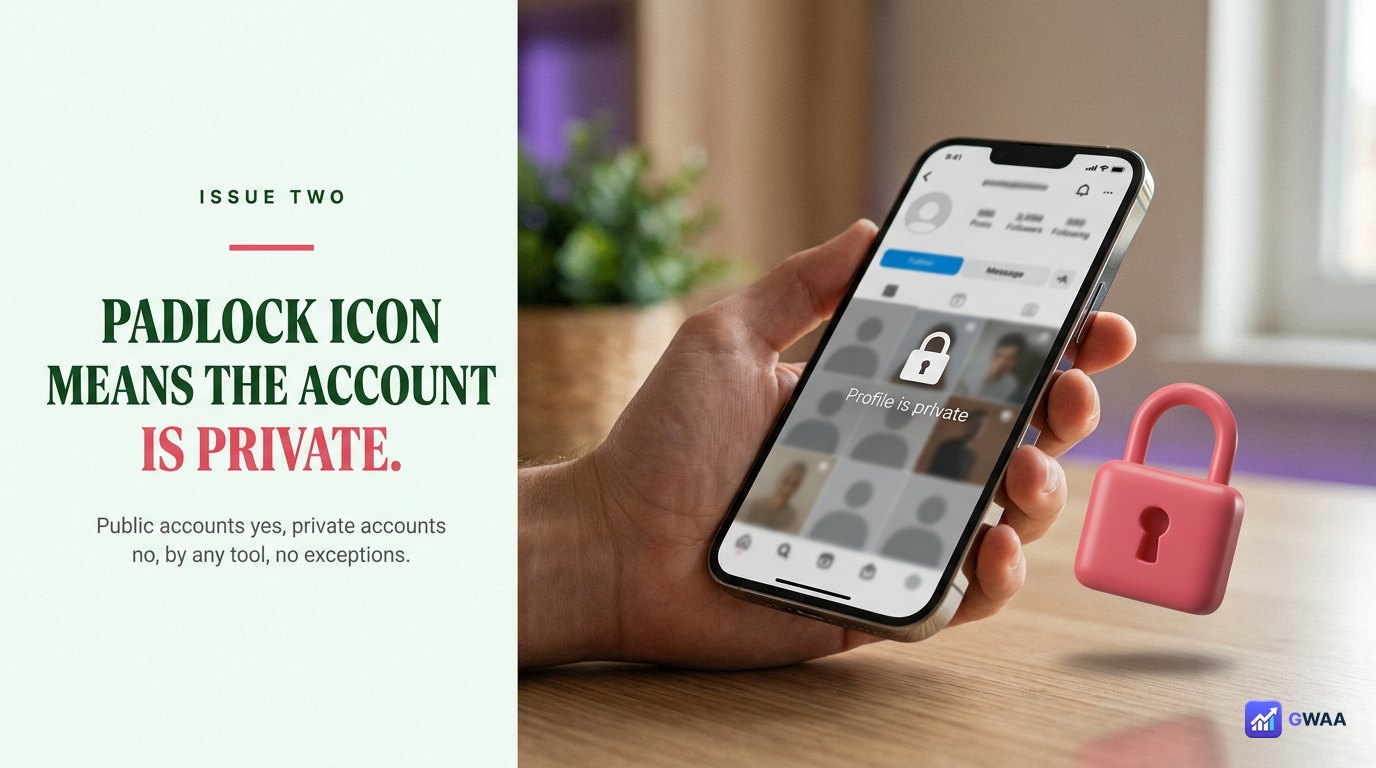
If the username is definitely right but PeekViewer returns “profile is private”, the account is locked at Instagram’s server. Three honest realities:
- Open the profile on instagram.com to confirm — if you see a padlock icon next to the username and a “This account is private” message, it’s locked.
- No third-party tool can unlock a private account. Private profiles are gated at Instagram’s server, before any tool gets the chance to ask.
- Any site claiming to view private accounts without login is lying — either credential phishing, fake content, or ad-fraud surveys.
The only honest path is to send a follow request from your real Instagram account. If the owner accepts, you can view their content normally through Instagram (not through PeekViewer, which is for public content).
Issue 3: Browser cache fixes
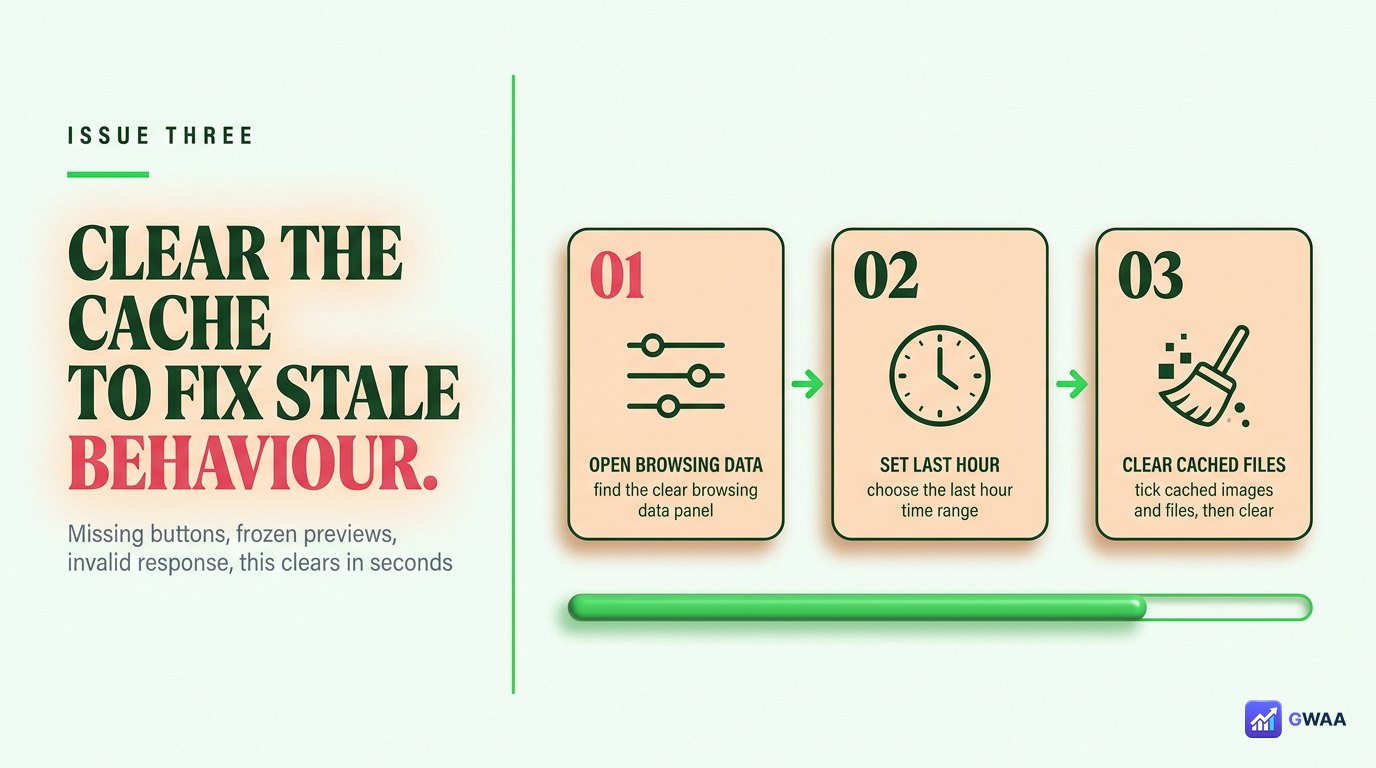
If PeekViewer worked before and is now showing weird behaviour — missing buttons, frozen previews, “invalid response” messages — your browser is likely holding a stale copy of the code. Clear cache fixes this in seconds:
- Hard-reload first. Ctrl+Shift+R (Windows) or Cmd+Shift+R (Mac). Forces the browser to re-download everything for the page in one tap.
- If hard-reload doesn’t help, clear browser cache. Settings → Privacy → Clear browsing data → “Cached images and files” only, last hour. You don’t need to wipe cookies; cache alone is enough.
- Open in private/incognito mode. This bypasses both cache and any browser extension. If it works in incognito, an extension is the culprit.
Issue 4: Try a different browser
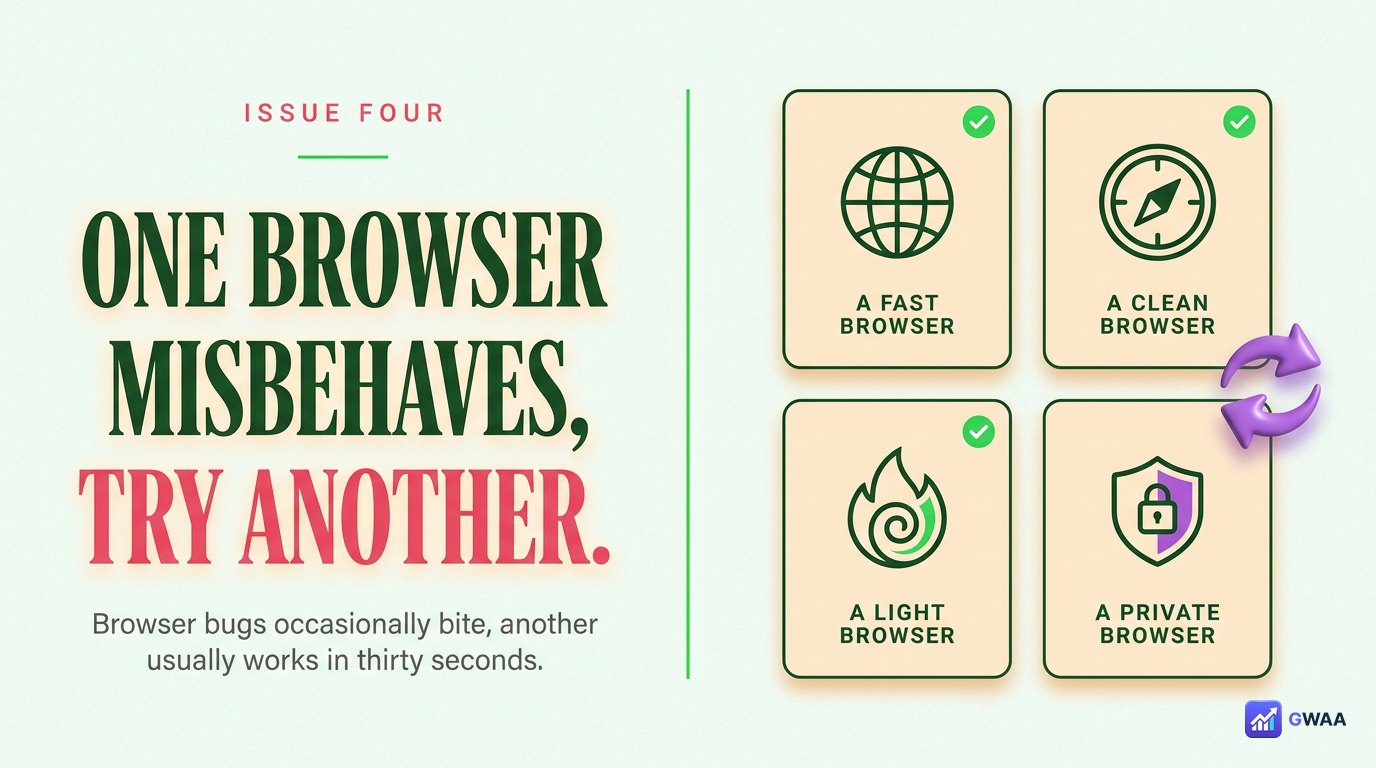
Browser-specific bugs occasionally bite. If PeekViewer fails consistently in your usual browser, try one of these others for thirty seconds:
- Chrome — the reference browser, most-tested, most-reliable.
- Safari — works on iPhone, iPad and Mac.
- Firefox — solid alternative if Chrome and Safari both have issues.
- Edge / Brave — Chromium-based, similar behaviour to Chrome.
If PeekViewer works in one browser but not another, it’s a browser-specific quirk or a problematic extension. Disable extensions one by one to find the culprit, or just use the working browser as a workaround.
Match the symptom to the fix
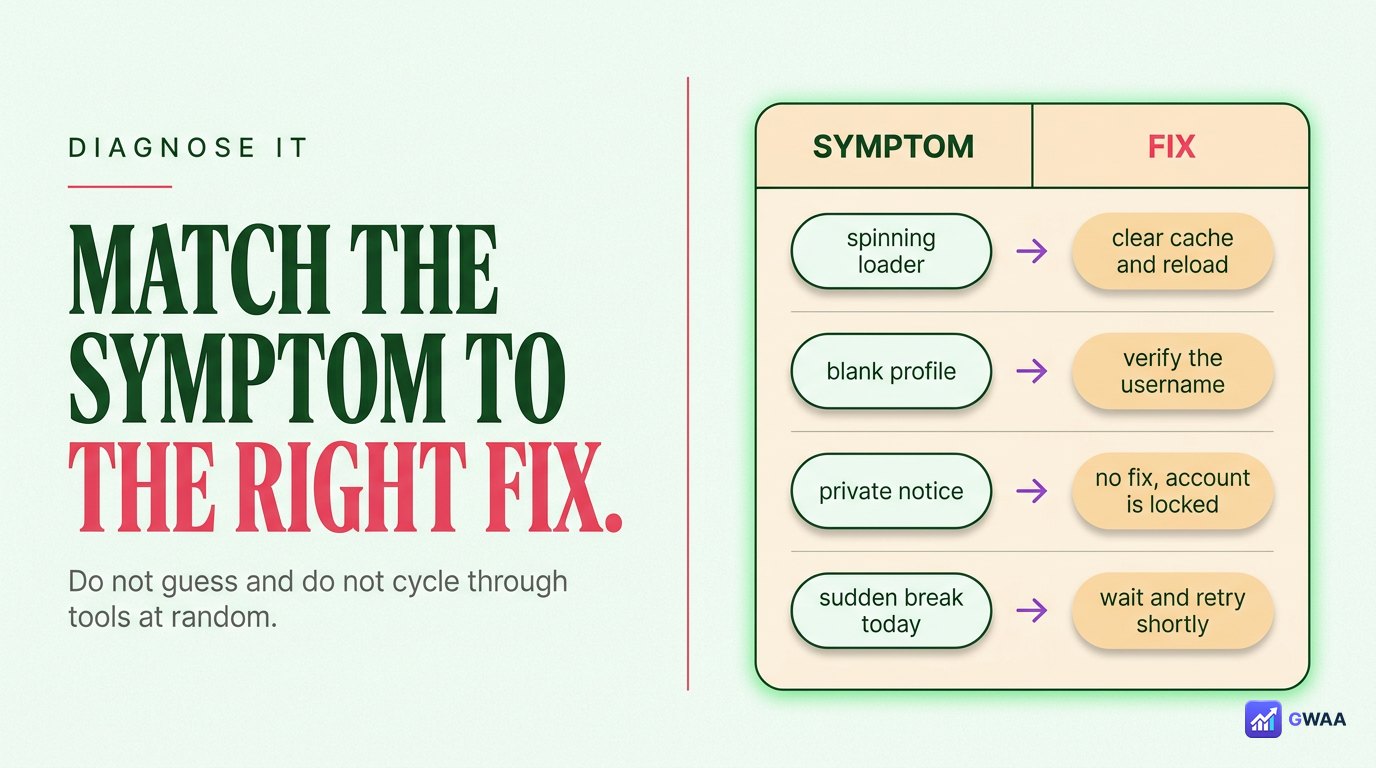
If the basics check out, match the exact symptom to the matching fix below:
- “Profile not found” — almost always a typo. Re-verify the handle from the Instagram URL bar.
- Profile loads but the grid is empty — usually a brief render failure. Hard-reload the page once.
- Stuck at the loading spinner — the fetch is failing. Clear cache, retry once.
- Loaded but Download button missing — subscription or trial state issue. Check you’re signed into your PeekViewer account (this is for the paid features, not Instagram).
- Worked yesterday, broken today — almost always a transient issue. Hard-reload, wait 30 min, retry.
Slow loading or stuck scans
 troubleshooting flow" decoding="async">
For loading-related issues (stuck spinners, partial loads), walk this five-step flow in order:
- Verify your network. Load any other website to confirm you have working internet.
- Hard-reload PeekViewer. Ctrl/Cmd+Shift+R.
- Try without VPN. Some VPN servers get rate-limited by Instagram’s endpoints, breaking the upstream fetch.
- Try a different browser. Isolates browser-specific bugs.
- Wait 15-30 minutes and retry. If multiple profiles all fail in a row, PeekViewer is briefly down — it almost always self-resolves quickly.
Network and VPN issues
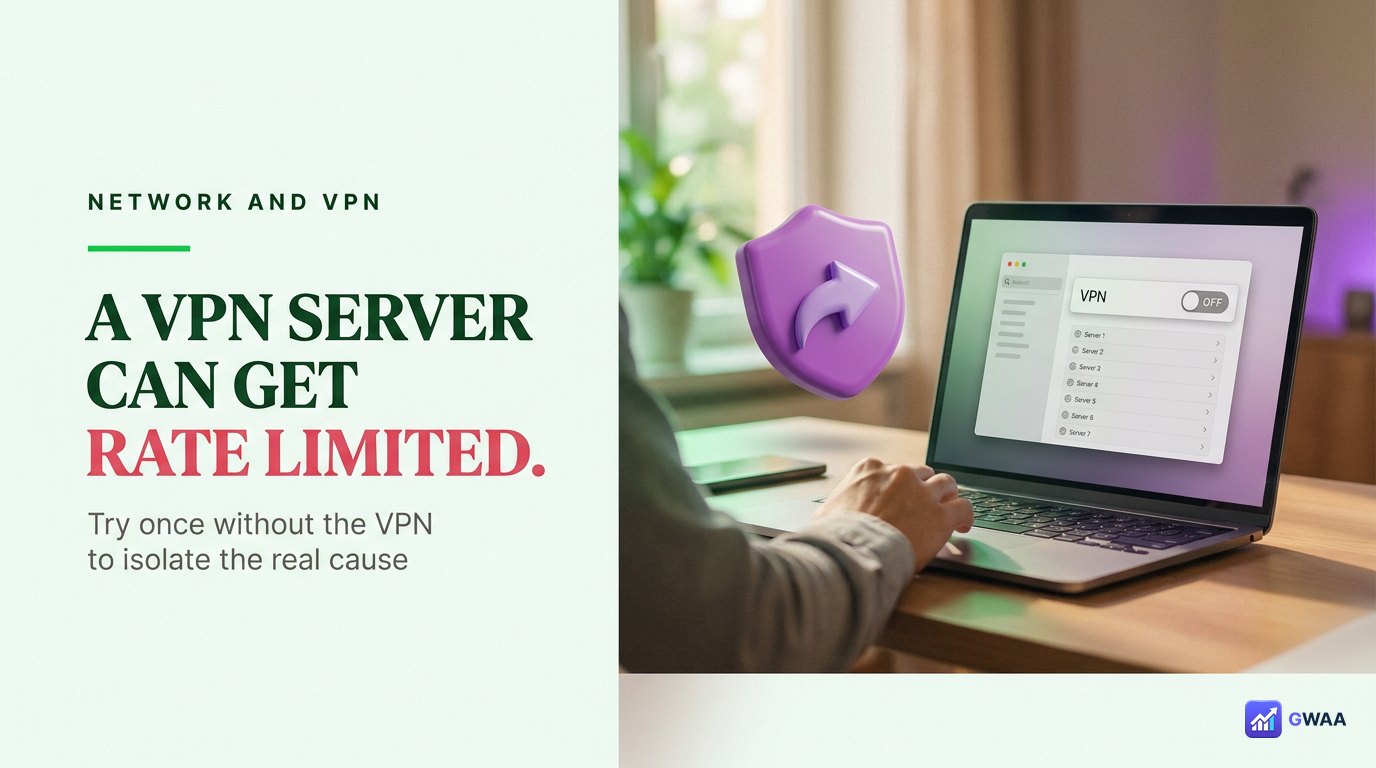
If you’re behind a VPN and PeekViewer is acting up, the VPN might be the issue:
- Try without VPN once. Instagram occasionally rate-limits certain VPN provider IPs, breaking the upstream public-fetch.
- Switch VPN region. If you must use a VPN, try a different country — Asian/European servers often work when US ones are throttled, and vice versa.
- Disable corporate firewall. Work networks sometimes block third-party API fetches; try on personal Wi-Fi to test.
The same goes for ad-blockers and privacy extensions — they occasionally interfere with PeekViewer’s legitimate API calls. Whitelist peekviewer.gwaa.net in any blocker you’re running.
Issue 5: It worked yesterday, but not today
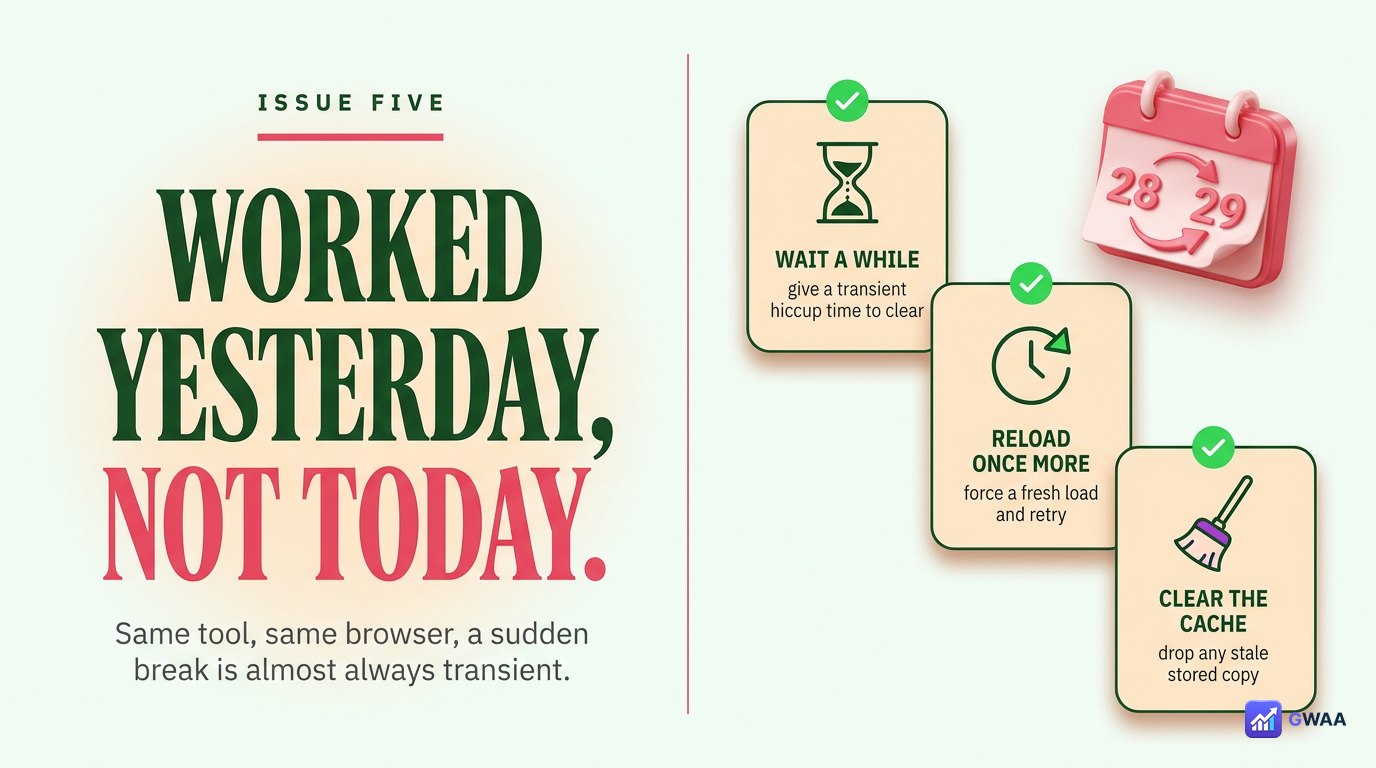
This is one of the most common “help me” emails, and the cause is almost always transient:
- Hard-reload first. The current version of PeekViewer’s code may have shipped overnight; you’re on yesterday’s cached copy.
- Check PeekViewer’s status page or social channels. Brief outages happen — usually fixed within an hour, never an indication of permanent breakage.
- Confirm with a known-good profile. If a profile you know was working yesterday now fails, the issue is upstream. If only one specific profile fails, the issue might be account-side (deleted, made private, etc).
What no troubleshooting will fix
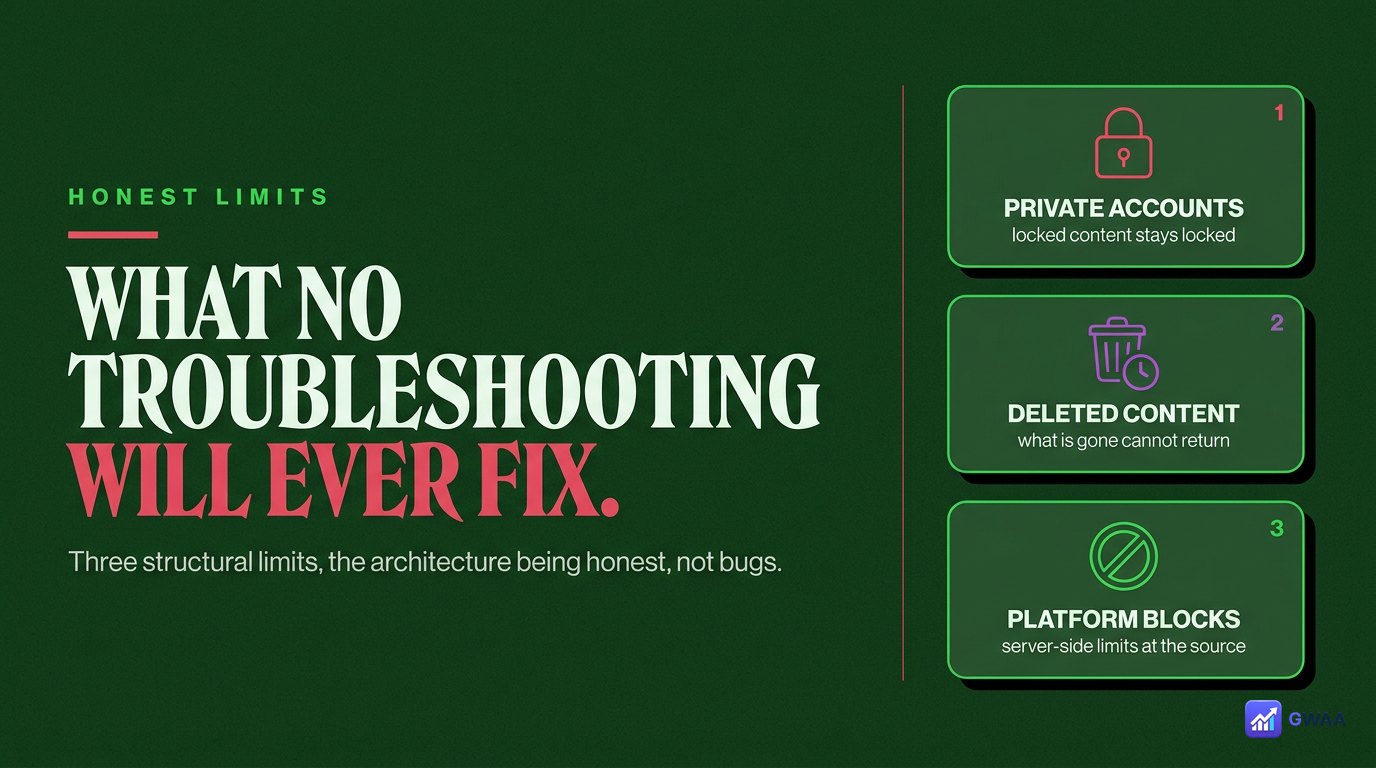
Three categories cannot be fixed by any troubleshooting, no matter what:
- Private profiles you don’t follow. Locked at Instagram’s server. Ask for a follow on Instagram itself.
- Deleted accounts. If the account was removed by Instagram or the owner, no public endpoint serves it. Nothing recovers it.
- Long-expired stories (past cache window). PeekViewer’s cache holds recent expiries for ~3 months; past that, even the cache rotates out.
These aren’t PeekViewer bugs — they’re structural limits of how Instagram’s public endpoints work. The honest tools all draw the same line because they all face the same architecture.
Final troubleshoot checklist
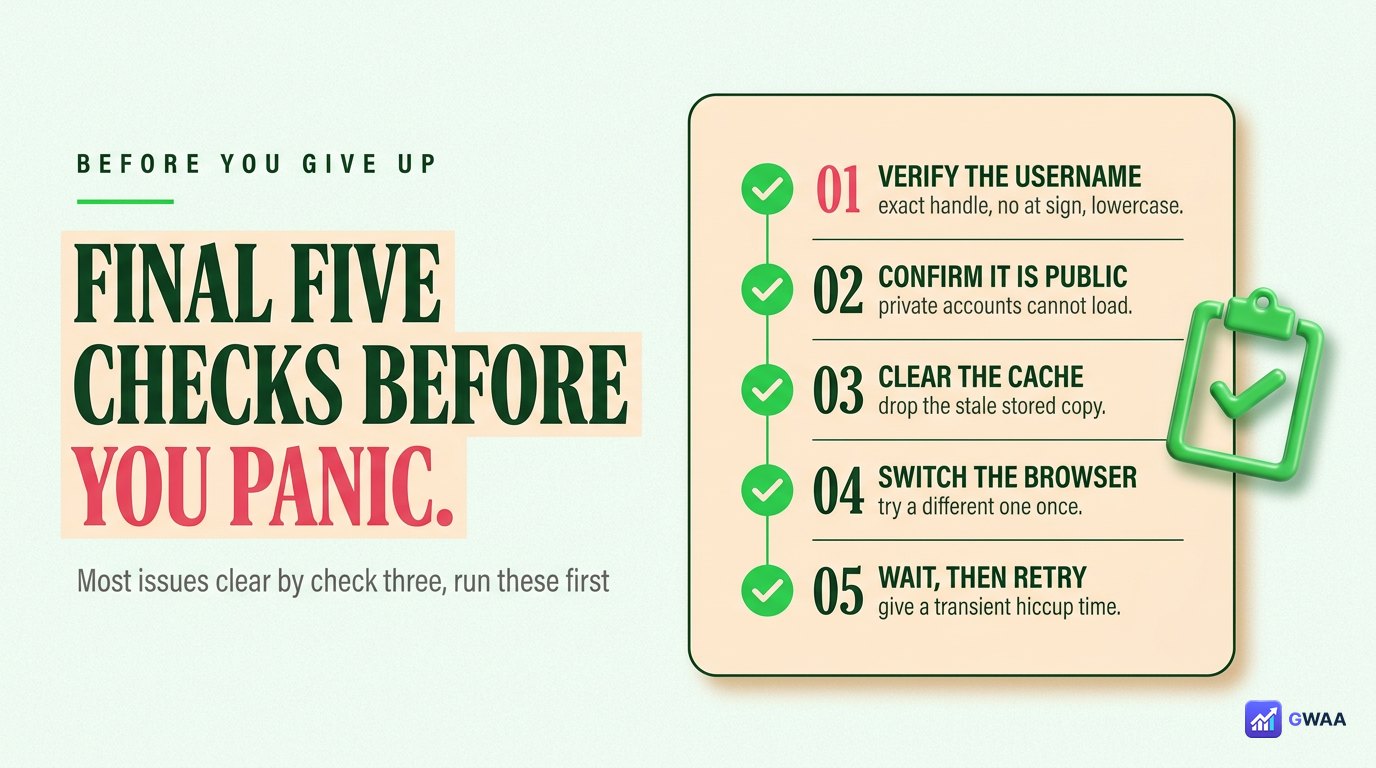
Run these five checks before assuming the service is broken:
- Spelling verified from instagram.com URL. Most failures end here.
- Account is public (no padlock on instagram.com). Required for any tool.
- Hard-reload + cache clear last hour. Cures stale-state weirdness.
- Tried in a second browser. Rules out browser-specific bugs.
- Waited 30 minutes if all else failed. Brief downtimes self-resolve in under an hour.
If you reach the end of this list and it’s still failing, email PeekViewer’s support — they respond to real bug reports within 1-2 business days.
Downloads not saving? Quick fixes
Separate from the loading issues above, a different category of “not working” complaint is “I can see the story but the Download button does nothing”. Four causes and their fixes:
- You’re on the free trial and downloads are paywalled. The trial lets you view stories; HD downloads require a subscription. Check the small lock badge on the Download button — if it’s greyed out with a lock icon, that’s a subscription gate, not a bug.
- Browser blocked the download silently. Some browsers (especially Safari) silently block downloads that trigger via JavaScript. Look for a small download icon in the address bar after tapping Download; click to allow.
- Storage full on your device. Phones with low free space sometimes accept the download but fail to write it. Check free space in Settings → Storage; clear some space if low.
- File saved silently to an unexpected location. The file may be there but in your browser’s default Downloads folder rather than the Photos gallery. Check Downloads first before assuming it failed.
When to email support
After running the five-step checklist + the downloads-not-saving section above, the rare remaining cases benefit from a real support email. Three kinds of issue worth reporting:
- Same profile failing for 24+ hours. If a profile that “should” work (public, real handle, you’ve confirmed on instagram.com) consistently fails on PeekViewer for over a day, it’s probably a real integration bug worth flagging.
- Subscription billing weirdness. Double charges, missing invoices, refund requests — support handles these within 1-2 business days. The cancellation flow in your account is one-tap; if it didn’t work for you, that’s a real bug.
- Account access issues. Forgotten password, unable to log into your PeekViewer subscription account, two-factor problems — standard subscription-business issues handled via email.
The contact email is in the site footer. Genuine support requests usually get a human reply within a couple of business days — another marker that this is a real business, not a scam clone.
The bottom line
PeekViewer “not working” almost always traces back to one of the same four causes. Walk the five-step checklist above and you’ll diagnose the issue in under a minute about ninety percent of the time. The remaining ten percent is usually a brief transient downtime that self-resolves in 15-30 minutes — the right move is to wait and retry, not to install a different tool.
For the genuinely-unfixable cases (private accounts, deleted content, long-expired stories), the honest answer is that no tool can help — those are structural limits of Instagram’s architecture, not PeekViewer-specific failures. Knowing the line keeps you from chasing scam tools that promise to solve the impossible.
One final principle: if a single profile fails but everything else works, the issue is with that profile, not with PeekViewer. Could be private, could be deleted, could be temporarily restricted. Move on to a different profile to confirm the tool works, then investigate the specific profile separately on Instagram itself.
Explore more across GWAA: Highlights not loading — 7 fixes · Fix ‘Couldn’t refresh feed’